Why Is My Zoom Call So Quiet? Speaker and Mic Fixes That Help
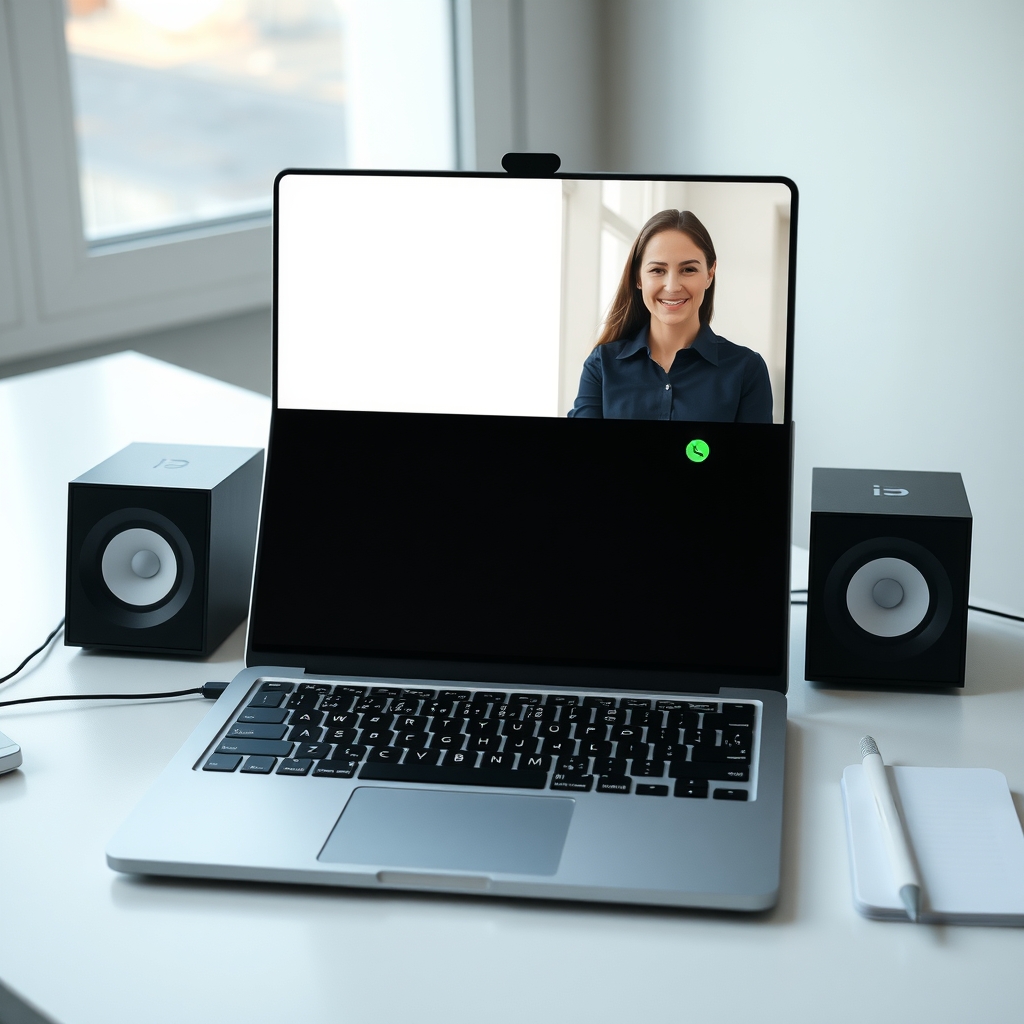
A quiet Zoom call is usually a buried volume slider, the wrong output device or weak laptop speakers. Check the settings first, then add real speakers.
By Jamilur Rahman Updated November 5, 2026 · 6 min read
- Time
- 10 min
- Cost
- $20-$50
- Difficulty
- Easy
In this guide
Quick answer
Why is my Zoom call so quiet? Most often a volume control is turned down somewhere between Zoom and your ears: Zoom's own speaker slider, your system volume, the app's slider in your volume mixer, or the wrong output device. If everything is at maximum and it is still faint, the laptop speakers are the weak link. USB computer speakers give you louder, clearer sound with one cable.
Free fix vs. permanent fix
Turn up every volume in the chain
- Raise Zoom's speaker slider and your system volume
- Check the app volume in your computer's mixer
- Pick the right output device and run the speaker test
How long it lasts: Permanent if the cause was a setting. It cannot add loudness to weak laptop speakers.
USB computer speakers
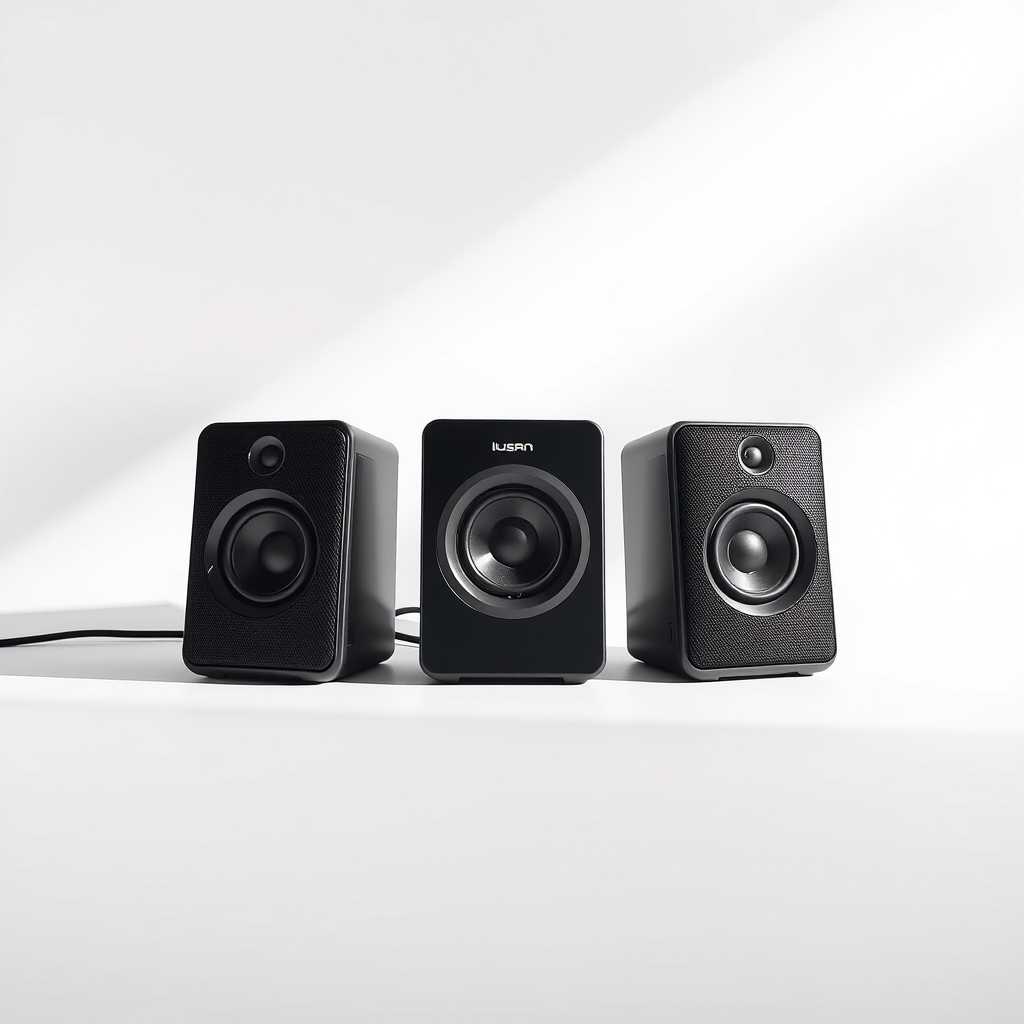
Laptop speakers are tiny and aimed at the table or your lap, so voices fade when the room is noisy. Desktop speakers have bigger drivers and sit at ear level. That means more volume and clearer voices with no extra settings.
How long it lasts: Years. Plug them in once and every call, video and song sounds louder and fuller.
As an Amazon Associate I earn from qualifying purchases.
What you'll need
-
Wired headphones or earbuds
A quick test to see if the laptop speakers are the problem
You have it -
Zoom speaker test
In Zoom settings under Audio, press Test Speaker
Free - Our pick Illustration
USB computer speakers
Plug-and-play, powered over USB or from the wall
- Illustration
Wired USB headset with microphone
For noisy rooms or shared spaces
Why it happens
A volume slider is turned down
Zoom has its own speaker volume. Your computer has a system volume and, on Windows, a separate level for each app. Any one of them can hold the sound back.
The wrong output device
Zoom may be sending audio to a monitor, a Bluetooth gadget in another room or a speaker that is turned low, instead of the speakers you are using.
The other person's microphone
If one person sounds quiet and everyone else sounds fine, the problem is their microphone or how far they sit from it.
Small laptop speakers
Thin laptops have little speakers pointing down or sideways. On a soft surface such as a bed or lap, the sound is muffled more.
Try this first (free)
Do these in order, starting with the simplest.
-
Run Zoom's speaker test
Tool used: Zoom speaker testOpen Zoom, go to Settings, then Audio, and press Test Speaker. Drag the Output level slider up. If the test tone is loud but calls are quiet, the other person's microphone is the problem.
-
Raise the system volume to the top
Turn your computer volume to maximum for the call, then lower it to taste. On Windows, right-click the speaker icon, open the volume mixer and check that Zoom's slider is not low.
-
Pick the right output device
In Zoom's Audio settings, open the Speaker drop-down and choose the speakers or headphones you are actually using. Do the same in your system sound settings.
-
Test with headphones
Tool used: Wired headphones or earbudsPlug in wired headphones and join the call. If it is loud and clear, the laptop speakers are the weak link, not Zoom or the other person.
-
Restart Zoom and the computer
Quit Zoom fully and relaunch it. If the sound level still jumps around, restart the computer, then check for any audio driver update.
-
Ask a quiet speaker to fix their side
If just one person is faint, ask them to move closer to their microphone, check their input device or switch to a headset.
When free fixes aren't enough
If the volume is at maximum everywhere and calls are still hard to follow, the laptop speakers are the limit, and software cannot add loudness the hardware does not have. This is common with thin laptops in a room with fans or traffic. A pair of USB computer speakers puts bigger drivers at ear level and fixes it in one step. If you share a room, a wired headset keeps the sound to yourself and gives the other side a better microphone too.
Buy the fix
Still stuck after the free fixes? These are the products we would look at.
| Pick | Product | Fixes | Who it's for | Buy |
|---|---|---|---|---|
| Best pick | USB computer speakers | faint, muffled sound from thin laptop speakers | Anyone on daily calls at a desk who has already maxed the volume settings. | Check price |
| Budget pick | Wired USB headset with microphone | quiet or muddy calls in a noisy room, on your side and theirs | People who work in shared spaces or hear their own room more than the call. | Check price |
USB computer speakers
Fixes: faint, muffled sound from thin laptop speakers
Look for: A simple USB connection, with USB power or a wall adapter; A volume knob on the front that you can reach; A 3.5 mm headphone jack, so you can switch to headphones; Owner reviews that mention clear voices on calls.
- Who it's for
- Anyone on daily calls at a desk who has already maxed the volume settings.
- Honest downside
- You use your laptop in cafes or shared spaces, where you need a headset.
Wired USB headset with microphone
Fixes: quiet or muddy calls in a noisy room, on your side and theirs
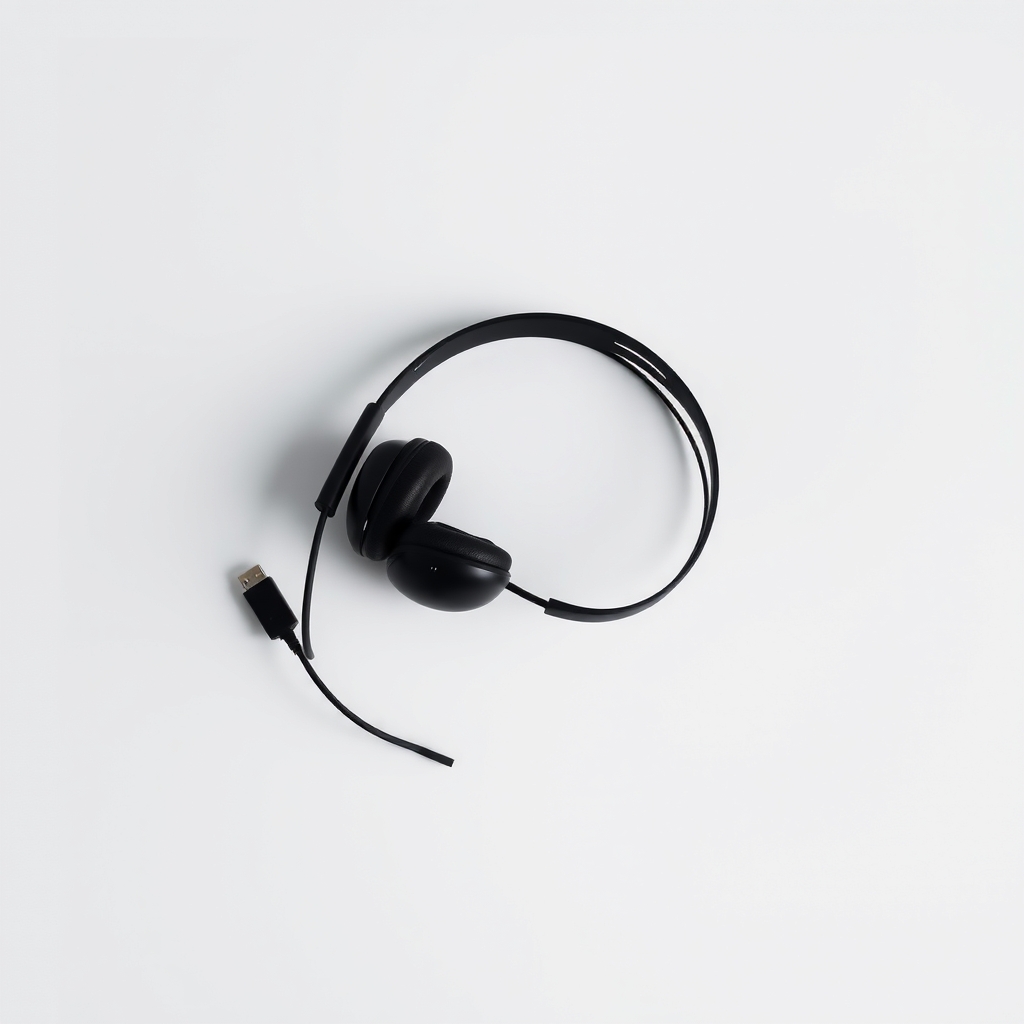
Look for: A wired USB or 3.5 mm connection, so there is no battery; A boom microphone that sits near your mouth; In-line volume and mute controls; Comfortable ear pads for long calls.
- Who it's for
- People who work in shared spaces or hear their own room more than the call.
- Honest downside
- You dislike wearing something on your head. Speakers are better then.
As an Amazon Associate I earn from qualifying purchases. We don't show prices because they change, so use the button to see today's price.
How we picked: How we picked: this page is based on Zoom's audio settings help pages, operating system sound guides and what owners report in reviews of computer speakers and headsets. We do not test products by hand.
How to adjust Zoom call volume on Windows and Mac
- In Zoom: Settings, then Audio, then drag the Output level slider and press Test Speaker.
- Windows: right-click the speaker icon and open the volume mixer, then raise the app slider for Zoom.
- Mac: open System Settings, then Sound, choose your output and raise the output volume.
- Bluetooth headsets: check the volume on the headset itself, since it has its own level.
Laptop too quiet? Why the speakers fall short
Laptop speakers are small, and thin cases leave little room for sound. They often face down, so a soft surface mutes them. Set the laptop on a hard desk, move away from fans or open windows, and use headphones or desktop speakers for calls that matter.
What to skip
Third-party volume booster apps
Software that pushes volume above 100 percent usually distorts the sound and can harm small speakers. It also makes voices harder to understand. Fix the settings, or replace the speakers.
Frequently asked questions
Zoom call too quiet: is it my computer or the other person?
Why is my Zoom call volume so low even when my volume is maxed?
How to fix volume on a Zoom call that is fine for music but low in meetings?
How to fix sound on a Zoom call when there is no sound?
Related problems
 Free fix inside
Home Office & Cables · Video Calls
Why Does My Zoom Call Echo? The Quick Cause and the Headset Fix
Read the fix Free fix inside
Home Office & Cables · Monitor
Why Does My Monitor Have No Sound? The Speaker Fix
Read the fix Free fix inside
Home Office & Cables · Video Calls
How to Fix Your Microphone on a Zoom Call: Cable, Port, or Mic
Read the fix Free fix inside
Home Office & Cables · Video Calls
Why Do My Zoom Calls Keep Freezing? Plug In Instead of Using Wi-Fi
Read the fixAs an Amazon Associate I earn from qualifying purchases. Affiliate disclosure