Why Does My Monitor Have No Sound? The Speaker Fix
Many monitors ship with no speakers at all, and others get silenced by a setting. Check the basics, then add USB speakers for real desk sound.
By Jamilur Rahman Updated November 5, 2026 · 6 min read
- Time
- 10 min
- Cost
- $20-$50
- Difficulty
- Easy
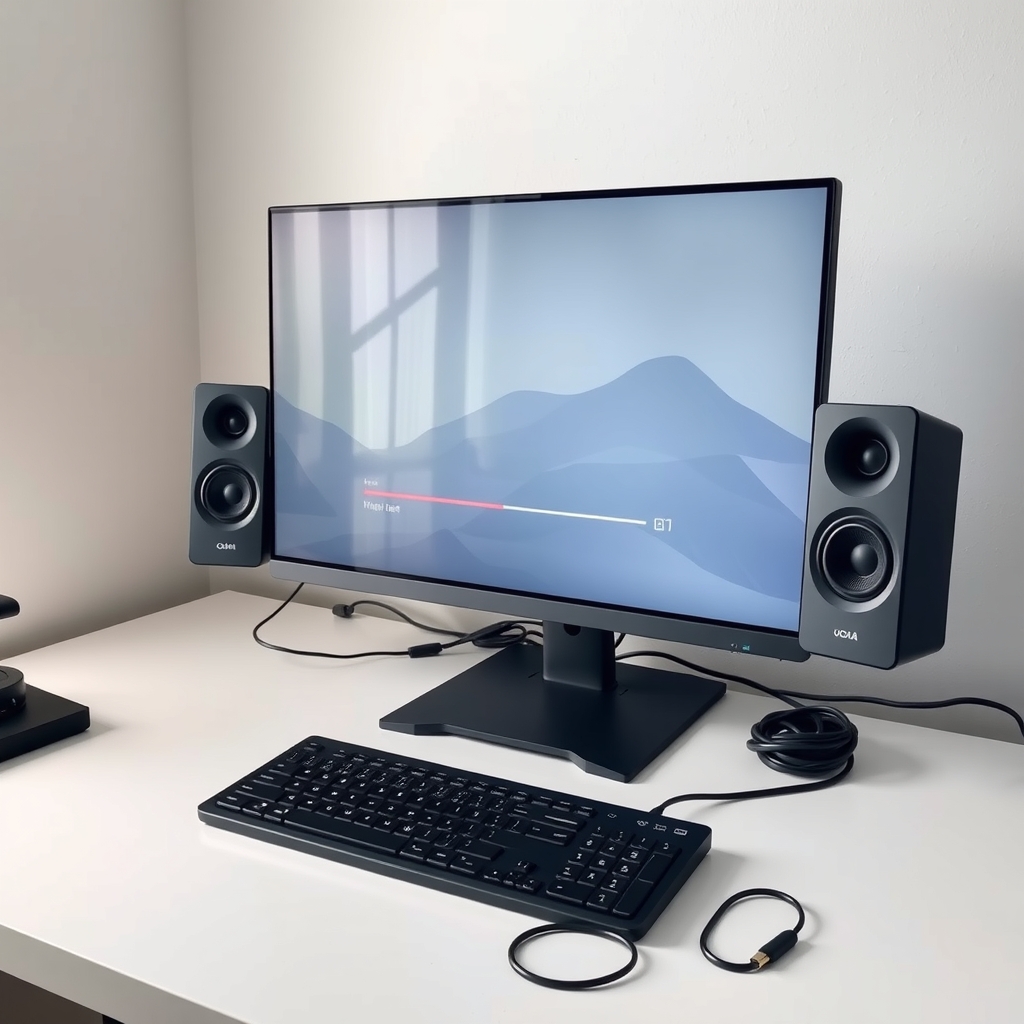
In this guide
Quick answer
Why does my monitor have no sound? Many monitors, especially office and gaming models, have no built-in speakers, and some only have a headphone jack. Check your computer's sound output, the monitor's own volume and the cable first. If your monitor has no speakers, no setting can make it play sound, and a pair of USB computer speakers is the simple fix.
Free fix vs. permanent fix
Check the output, the volume and the cable
- Look up your model for speakers or a headphone jack
- Set the sound output to the monitor in your computer's sound settings
- Raise and unmute the volume in the monitor's menu
- Test with wired headphones to see if sound reaches the monitor
How long it lasts: It fixes the problem for good if the monitor has speakers and a setting was off. If the monitor has no speakers, nothing changes.
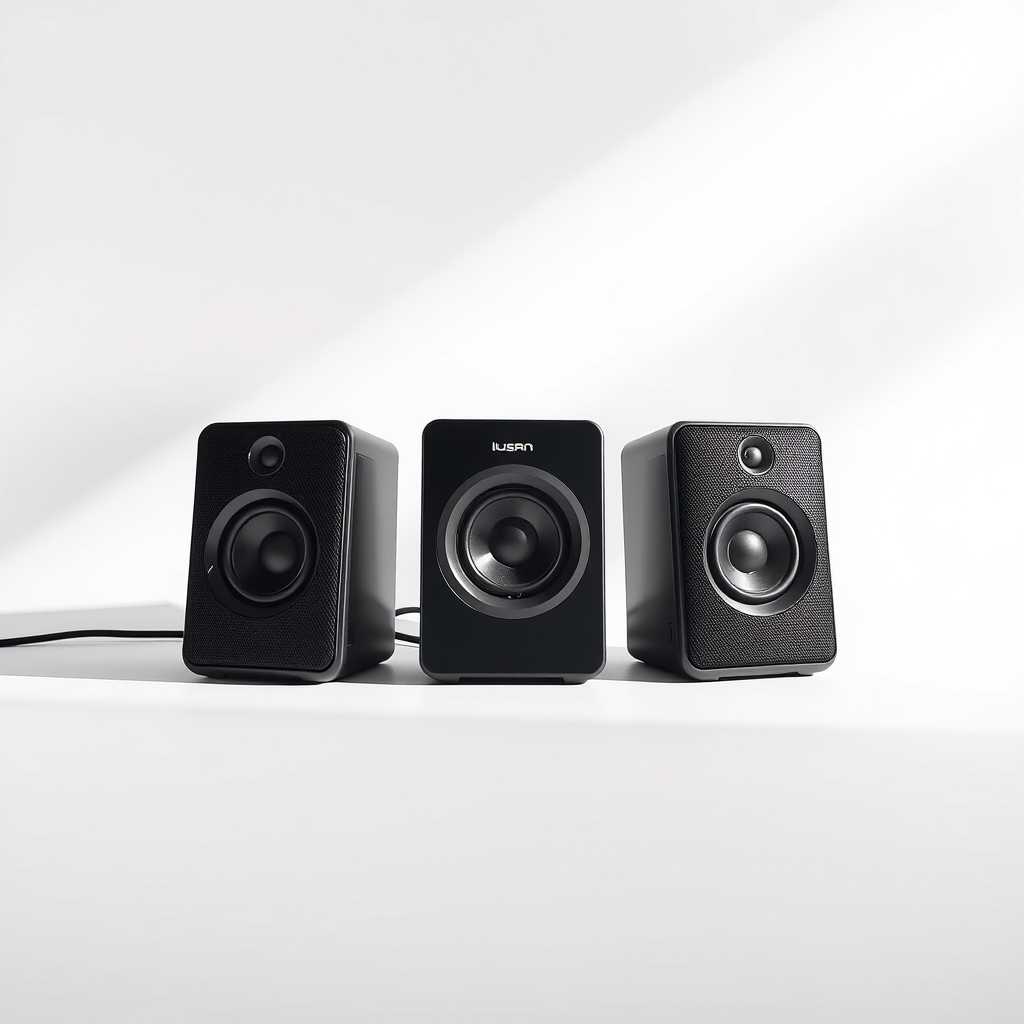
USB computer speakers
Speakers add the sound a monitor leaves out. USB-powered ones run from a single port, work with any laptop or PC and need no adapter, so you get sound on your desk without headphones.
How long it lasts: Years. Plug them in once and forget them.
As an Amazon Associate I earn from qualifying purchases.
What you'll need
-
Wired headphones
Any pair with a 3.5 mm plug works for testing
You have it -
Spare HDMI or DisplayPort cable
To rule out a cable that does not carry sound
You have it - Our pick Illustration
USB computer speakers
A small stereo pair that powers from a USB port
- Illustration
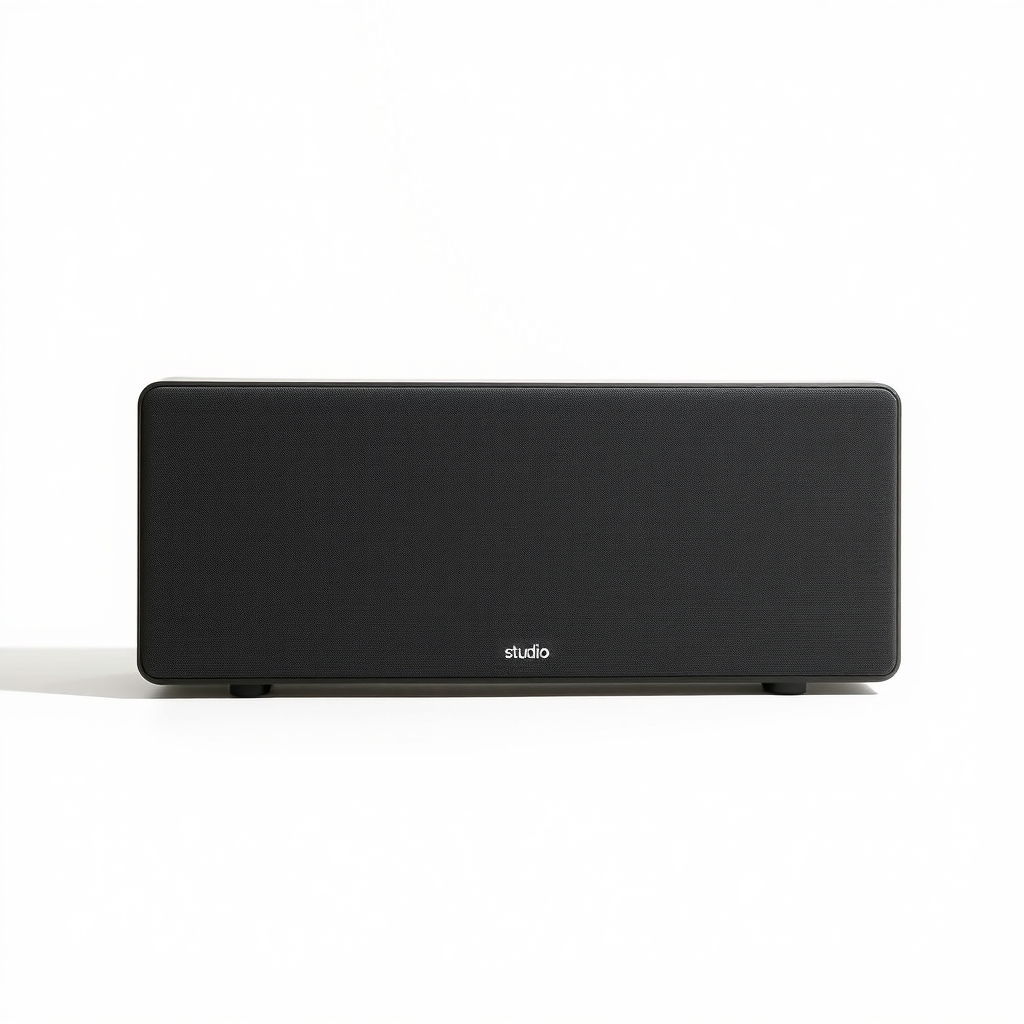
Compact monitor soundbar
A slim bar that sits under the screen, if you want a tidier desk
Why it happens
The monitor has no speakers
Plenty of monitors skip speakers to save cost. Some have only a headphone jack, which sends sound out but does not play it.
Your computer is sending sound elsewhere
Windows and macOS pick an output device. If it is set to the laptop speakers, a headset or a Bluetooth device, the monitor stays silent even with a good cable.
The monitor's volume is muted or turned down
Monitors have their own volume and mute in the on-screen menu. A game, a firmware update or a stray button press can leave it at zero.
A cable or adapter that does not carry audio
HDMI and DisplayPort can carry sound. VGA and DVI cannot, and some cheap adapters and hubs drop the audio.
Try this first (free)
Do these in order, starting with the simplest.
-
Find out if your monitor has speakers
Check the model number on the back or the box, then read its specs for built-in speakers or an audio-out jack. If it lists only a headphone out, it has no speakers.
-
Set the sound output to the monitor
On Windows, right-click the speaker icon, open sound settings and choose the monitor, often listed as HDMI or DisplayPort audio. On a Mac, open System Settings, then Sound, then Output.
-
Check volume and mute on both ends
Open the monitor's on-screen menu and raise the volume and turn off mute. Then check the computer's volume and the app you are using.
-
Swap the cable
Tool used: Spare HDMI or DisplayPort cableMake sure you are on HDMI or DisplayPort, since VGA and DVI carry no sound. Try a different port and cable to rule out a bad one.
-
Test with headphones
Tool used: Wired headphonesPlug wired headphones into the monitor's headphone jack. If you hear sound, the signal reaches the monitor and the screen has no speaker. If you hear nothing, go back to the output setting.
-
Add speakers if the monitor has none
Tool used: USB computer speakersConnect a USB speaker pair to a free port on your computer, or to a 3.5 mm jack with USB power, and set them as the output. Put them either side of the screen.
IllustrationCheck price on AmazonTool for this step
USB computer speakers · A small stereo pair that powers from a USB port
When free fixes aren't enough
If your monitor has no speakers, or the sound only plays through its headphone jack, the settings steps cannot create audio where nothing plays it. Headphones are the free option and work fine for solo use. For a shared desk, video calls without a headset or music while you work, a pair of speakers is the lasting fix. If the monitor does have speakers and still plays nothing after the cable and output checks, it may need a driver update or a repair.
Buy the fix
Still stuck after the free fixes? These are the products we would look at.
| Pick | Product | Fixes | Who it's for | Buy |
|---|---|---|---|---|
| Best pick | USB computer speakers | a monitor with no speakers, or sound too weak to hear | Anyone with a speakerless monitor who wants sound on the desk without headphones. | Check price |
| Upgrade pick | Compact monitor soundbar | a monitor with no speakers when you want a tidier desk | People who want one slim device in front of the screen, and not two speakers on the sides. | Check price |
USB computer speakers
Fixes: a monitor with no speakers, or sound too weak to hear
Look for: Power and sound over USB, or USB power with a 3.5 mm audio plug; A volume knob on the front or a wired control you can reach; A small size that fits either side of your screen; A headphone jack on the speaker, so you can switch without unplugging.
- Who it's for
- Anyone with a speakerless monitor who wants sound on the desk without headphones.
- Honest downside
- You only listen privately, since headphones do that for free, or you have no free USB port and no hub.
Compact monitor soundbar
Fixes: a monitor with no speakers when you want a tidier desk
Look for: A slim body that fits under the screen; USB power and a wired or Bluetooth connection; Volume controls you can reach on the bar.
- Who it's for
- People who want one slim device in front of the screen, and not two speakers on the sides.
- Honest downside
- Your monitor sits low on its stand and leaves no gap under the screen, or you want strong bass, which small bars cannot give.
As an Amazon Associate I earn from qualifying purchases. We don't show prices because they change, so use the button to see today's price.
How we picked: How we picked: this page is based on monitor and operating system support guides, cable standards and what owners report in reviews of USB speakers. We do not test products by hand.
Which connection carries sound
- HDMI: carries video and sound.
- DisplayPort: carries video and sound.
- USB-C with video: usually carries both, if the port supports video output.
- VGA and DVI: video only, so sound must come from somewhere else.
The monitor still needs a speaker or a headphone jack to turn that signal into sound you can hear.
What to skip
Hunting for drivers when the monitor has no speakers
Reinstalling drivers, updating the graphics card and resetting Windows will not help if the screen has no speaker to play the sound. Check the specs first, and save yourself an hour.
Frequently asked questions
Do all monitors have built-in speakers?
My monitor has speakers but no sound over HDMI. Why?
Can I get sound from a monitor over VGA or DVI?
Why does the sound work on my TV but not my monitor?
Related problems
 Free fix inside
Home Office & Cables · Monitor
Why Does My Monitor Say No Signal? Check the Cable Before the PC
Read the fix Free fix inside
Home Office & Cables · Monitor
Monitor Not Turning On? Test the Power Cord Before You Panic
Read the fix Free fix inside
Home Office & Cables · Monitor
Why Does My Monitor Keep Flickering? The Cable Swap That Fixes It
Read the fix Free fix inside
Home Office & Cables · Monitor
Laptop Not Detecting Your Monitor? Adapter and Dock Fixes
Read the fixAs an Amazon Associate I earn from qualifying purchases. Affiliate disclosure