Laptop Not Detecting Your Monitor? Adapter and Dock Fixes
Usually it is the wrong input, a bad cable or a USB-C port that cannot send video. Check those first, then add an adapter or dock for the missing port.
By Jamilur Rahman Updated November 5, 2026 · 8 min read
- Time
- 15 min
- Cost
- $20-$50
- Difficulty
- Easy
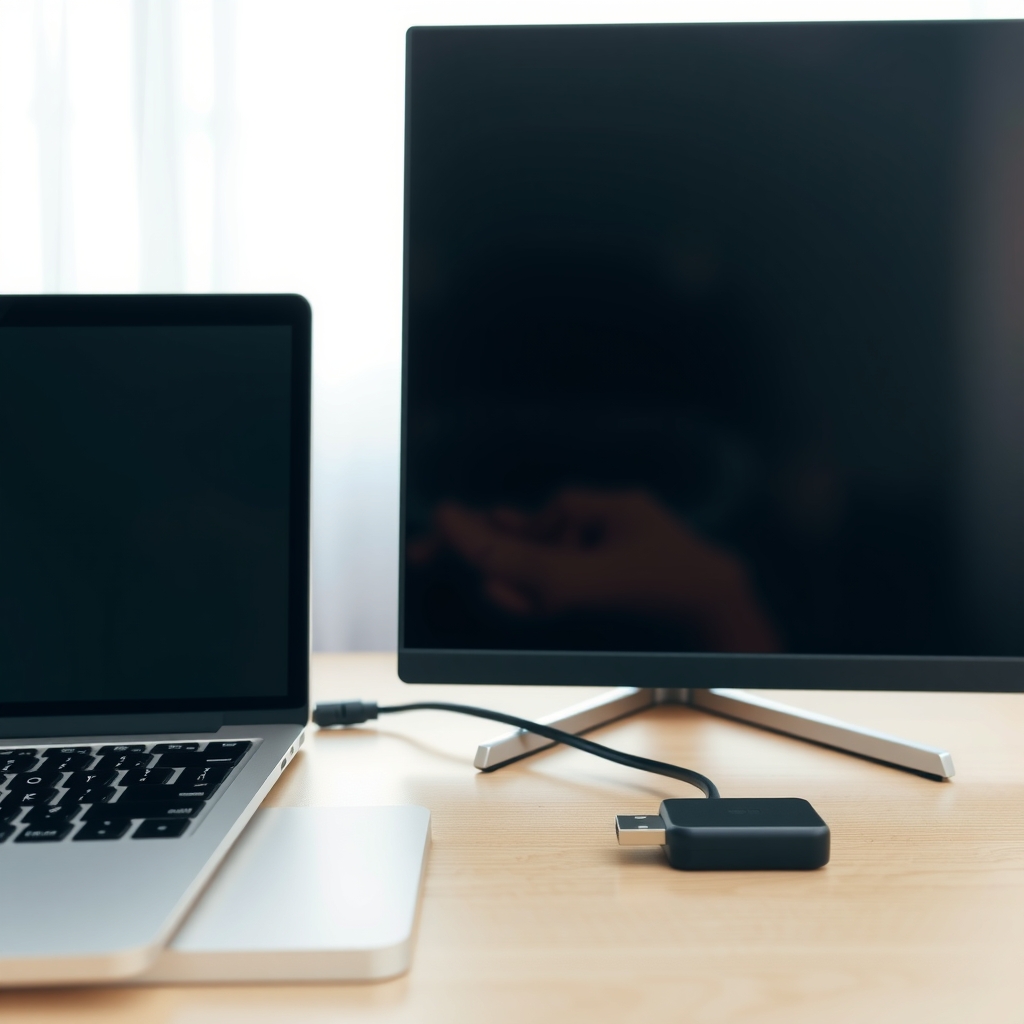
In this guide
Quick answer
If your laptop is not detecting your monitor, the cause is usually the wrong input, a bad cable or port, or a USB-C port that cannot send video. Reseat the cable, choose the right input on the monitor and force a detect in display settings. If your laptop lacks the port your monitor uses, a USB-C to HDMI adapter is the fix, and a docking station helps when you want more than one screen.
Free fix vs. permanent fix
Reseat, switch input, force a detect
- Pick the right input on the monitor
- Reseat the cable at both ends and try another port
- Force a detect from your display settings
- Check that your USB-C port can output video
How long it lasts: It fixes the problem for good if the cause was a loose cable or a setting. It does nothing if your laptop lacks the right port or cannot send video through USB-C.
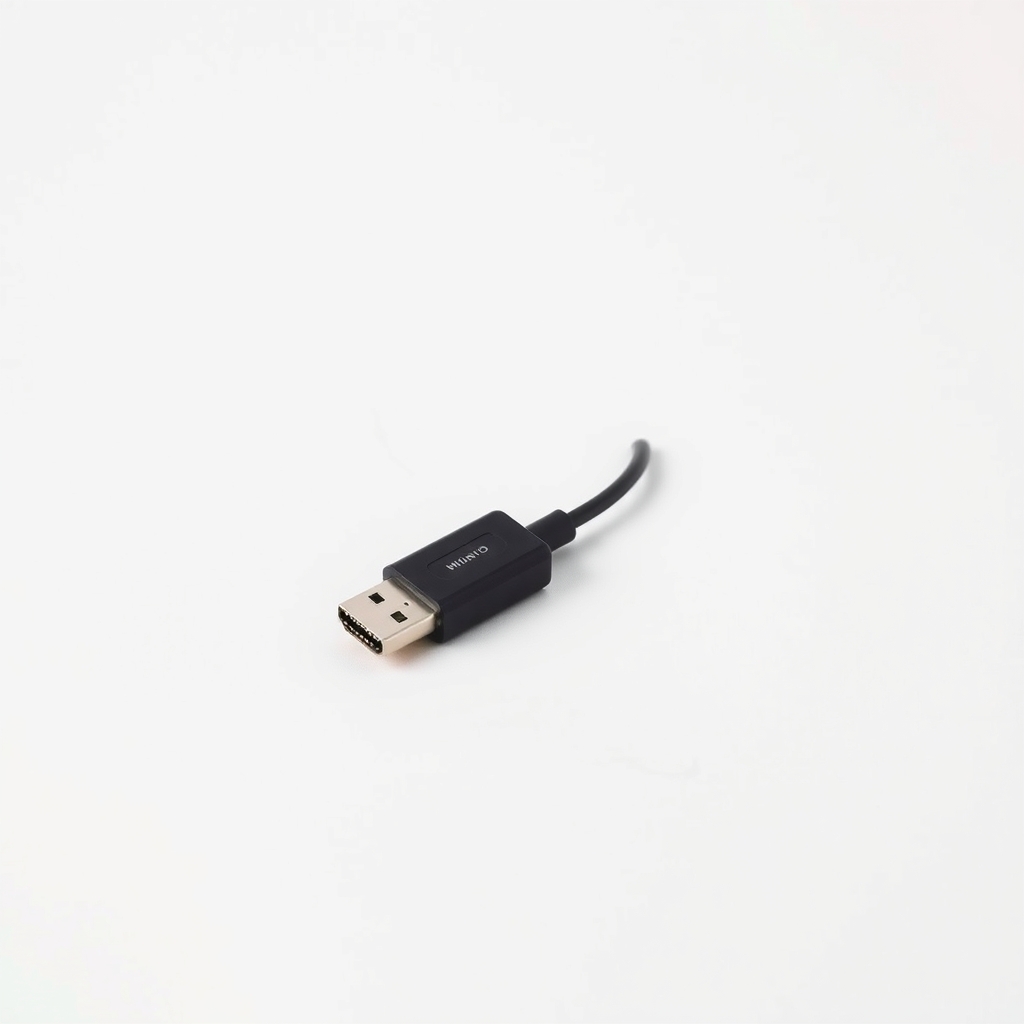
A USB-C to HDMI adapter
When the laptop has a USB-C video port but the monitor takes HDMI, no setting can join them. The adapter does that in one small piece, and it travels with the laptop. If you want power, several screens and other ports on one cable, a dock does the same job and more.
What to get: USB-C to HDMI adapter
How long it lasts: Years. It supplies the connection your laptop is missing.
As an Amazon Associate I earn from qualifying purchases.
What you'll need
-
Spare HDMI or DisplayPort cable
To check that your first cable is good
You have it - Illustration
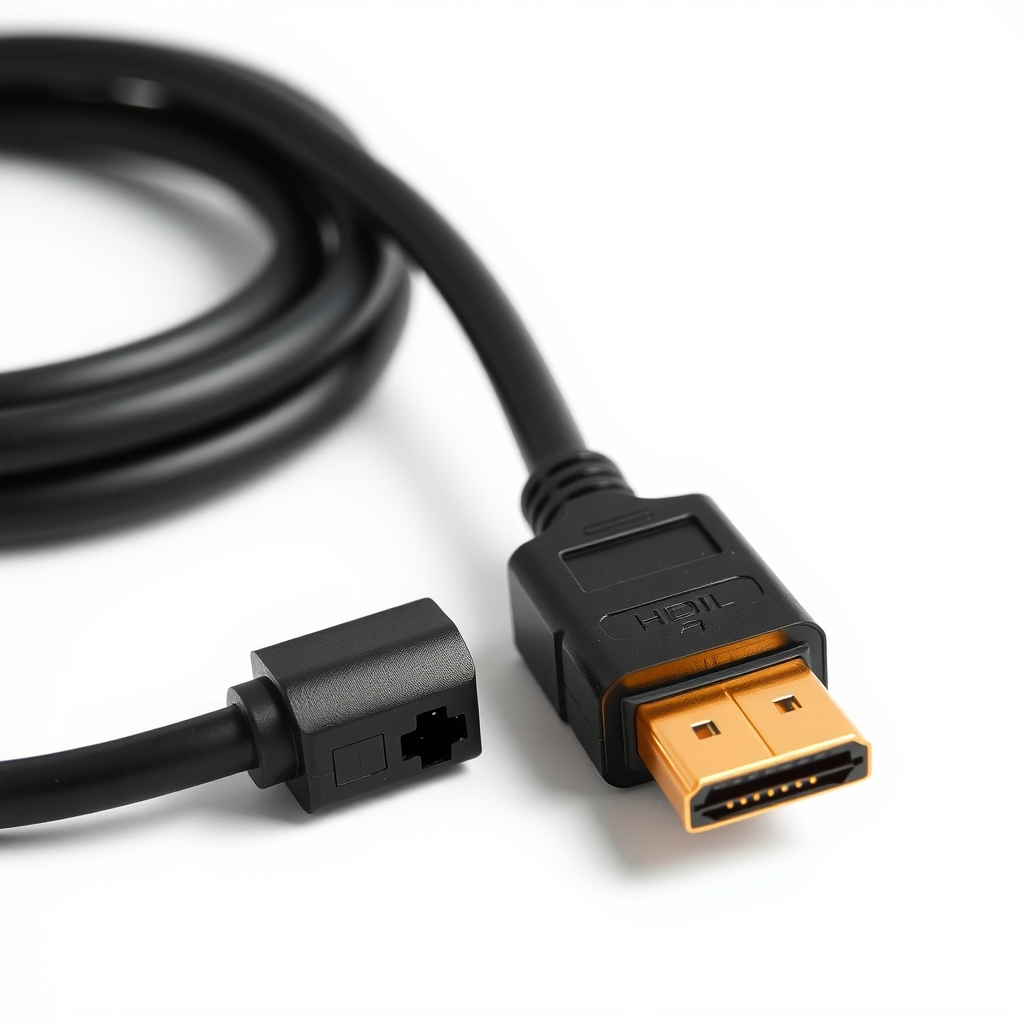
Replacement video cable
Only if your old one is bent, loose or limited
- Our pick Illustration
USB-C to HDMI adapter
Check that your USB-C port can output video first
- Illustration
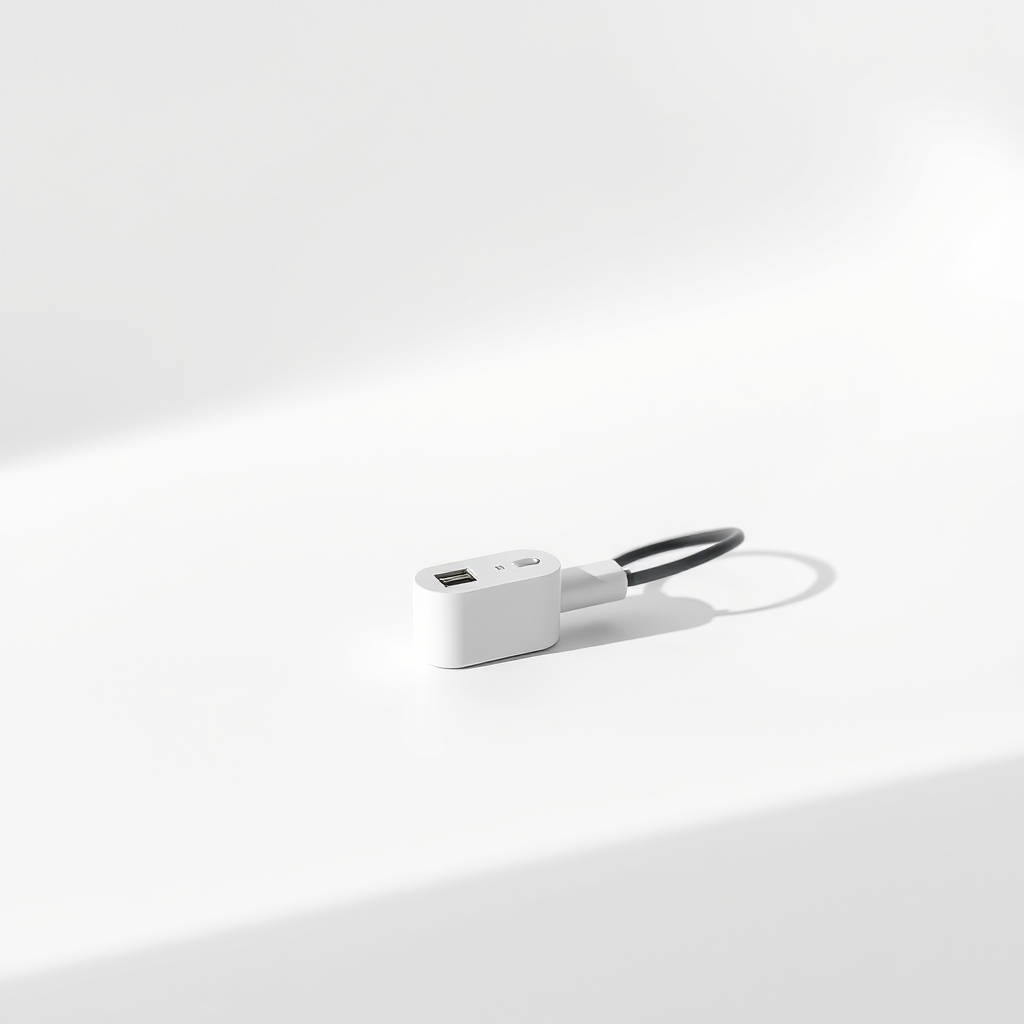
USB-C docking station
For two or more screens, charging and extra ports on one cable
Why it happens
The monitor is on the wrong input
Monitors with several ports often stay on the last one they used. The laptop is fine, and the screen is just looking somewhere else.
A loose, damaged or limited cable
A cable that is not fully seated, bent at the plug or made for lower resolution can drop the signal. A worn port can do the same.
A USB-C port that cannot send video
Many USB-C ports are for charging and data only. Only ports marked for DisplayPort or Thunderbolt, or listed with video output, can drive a screen.
Ports that do not match
A monitor with HDMI and a laptop with only USB-C or Mini DisplayPort needs an adapter. A passive cable might not work or might limit the screen.
Display settings or a driver glitch
The laptop may not have scanned for the screen, may have it turned off or may be using an old graphics driver. A restart often clears it.
Try this first (free)
Do these in order, starting with the simplest.
-
Check the input on the monitor
Turn the monitor on and open its menu or press the input button. Choose HDMI, DisplayPort or USB-C to match the cable you used. Auto-switching is not always reliable.
-
Reseat and test the cable
Tool used: Spare HDMI or DisplayPort cableUnplug both ends, plug them back in firmly and try another port on the laptop and the monitor. Then swap in a second cable to see whether the first one is the problem.
-
Force the laptop to look for the screen
On Windows, press the Windows key and P, choose Extend, then open Settings, System, Display and select Detect. On a Mac, open System Settings, Displays and hold the Option key to show Detect Displays.
-
Restart with the monitor connected
Shut the laptop down, connect the monitor and turn it on, then start the laptop. If that fails, update the graphics driver from the laptop maker's site.
-
Check that your USB-C port can output video
Look for a DisplayPort or Thunderbolt symbol next to the port, or check your laptop's specs for video output. If the port only charges and moves data, it will never drive a screen, whatever cable you use.
-
Match the ports with an adapter
Tool used: USB-C to HDMI adapterIf the laptop has a USB-C video port and the monitor has HDMI, connect them with the adapter. Choose one that lists the resolution and refresh rate your monitor can use.
IllustrationCheck price on AmazonTool for this step
USB-C to HDMI adapter · Check that your USB-C port can output video first
When free fixes aren't enough
If the monitor works with another device but your laptop shows nothing on any port, even with a good cable and an updated driver, the laptop's video port may be damaged and needs service. If your laptop just lacks the port your monitor uses, no setting will fix it, and the adapter is the answer. If you want two screens, charging and a keyboard on one cable, a dock is the better buy. Some Macs with base chips limit the number of external screens, so check Apple's specs for your model first.
Buy the fix
Still stuck after the free fixes? These are the products we would look at.
| Pick | Product | Fixes | Who it's for | Buy |
|---|---|---|---|---|
| Best pick | USB-C to HDMI adapter | a laptop with no HDMI port that still has a USB-C video port | Anyone connecting a USB-C laptop to an HDMI monitor or TV. | Check price |
| Budget pick | Replacement HDMI or DisplayPort cable | a cable that is damaged, loose or limited | Anyone whose current cable is old, bent or of unknown quality. | Check price |
| Upgrade pick | USB-C docking station | needing more screens, ports and charging than the laptop has | People who sit at the same desk daily and want one cable to connect everything. | Check price |
USB-C to HDMI adapter
Fixes: a laptop with no HDMI port that still has a USB-C video port
Look for: HDMI output at the resolution and refresh rate your monitor needs, such as 4K at 60 Hz if both sides support it; Made for video from a USB-C port with DisplayPort Alt Mode or Thunderbolt; A sturdy plug that does not wiggle in the port; Owner reports of a stable picture.
- Who it's for
- Anyone connecting a USB-C laptop to an HDMI monitor or TV.
- Honest downside
- Your USB-C port is for charging and data only. An adapter cannot add video to it. Choose a USB display adapter or a dock that lists your laptop.
Replacement HDMI or DisplayPort cable
Fixes: a cable that is damaged, loose or limited
Look for: The right connector on each end for your laptop and monitor; A rating for the resolution you want; Enough length that it does not tug on the ports.
- Who it's for
- Anyone whose current cable is old, bent or of unknown quality.
- Honest downside
- A second known-good cable fails the same way. Then the laptop port, the settings or the monitor is the cause.
USB-C docking station
Fixes: needing more screens, ports and charging than the laptop has
Look for: Video outputs that match your monitors, HDMI or DisplayPort; Charging power that fits your laptop; A listing that names your laptop type and the number of screens it supports; Extra USB and Ethernet ports.
- Who it's for
- People who sit at the same desk daily and want one cable to connect everything.
- Honest downside
- You only need one screen. A cheap adapter is enough. Check whether the dock needs a driver install before you buy.
As an Amazon Associate I earn from qualifying purchases. We don't show prices because they change, so use the button to see today's price.
How we picked: How we picked: this page is based on laptop and monitor support guides, display port standards and what owners report in reviews of adapters and docking stations. We do not test products by hand.
Does your USB-C port send video?
- Yes: it has a DisplayPort or Thunderbolt symbol, or your laptop's specs list video output over USB-C.
- No: it only shows a charging or USB symbol and your spec sheet lists no video output.
- Not sure: look up your laptop model's specs, or plug in a known-good USB-C video cable to a monitor and see if it lights up.
What to skip
A random multi-port hub for a second screen
Cheap USB hubs often carry only one screen at a low resolution, or none at all. Buy an adapter or dock that names video output and your resolution, and skip a hub that lists only USB ports.
Frequently asked questions
Why is my monitor not connecting to my laptop?
Why is my laptop not recognizing my monitor?
My laptop is not detecting a second monitor. What should I check?
Why is my laptop not connecting to the monitor with a USB-C cable?
Will an adapter fix a laptop that is not detecting a monitor?
Related problems
 Free fix inside
Home Office & Cables · Monitor
Why Does My Monitor Say No Signal? Check the Cable Before the PC
Read the fix Free fix inside
Home Office & Cables · Monitor
Why Does My Monitor Keep Flickering? The Cable Swap That Fixes It
Read the fix Free fix inside
Home Office & Cables · Monitor
Monitor Not Turning On? Test the Power Cord Before You Panic
Read the fix Free fix inside
Home Office & Cables · Monitor
Why Does My Monitor Have No Sound? The Speaker Fix
Read the fixAs an Amazon Associate I earn from qualifying purchases. Affiliate disclosure