Why Does My Monitor Say No Signal? Check the Cable Before the PC
A no signal message usually means a loose cable, the wrong input or the wrong port. Run these free checks first, then replace a bad cable with a certified one.
By Jamilur Rahman Updated November 5, 2026 · 8 min read
- Time
- 15 min
- Cost
- Free
- Difficulty
- Easy
In this guide
Quick answer
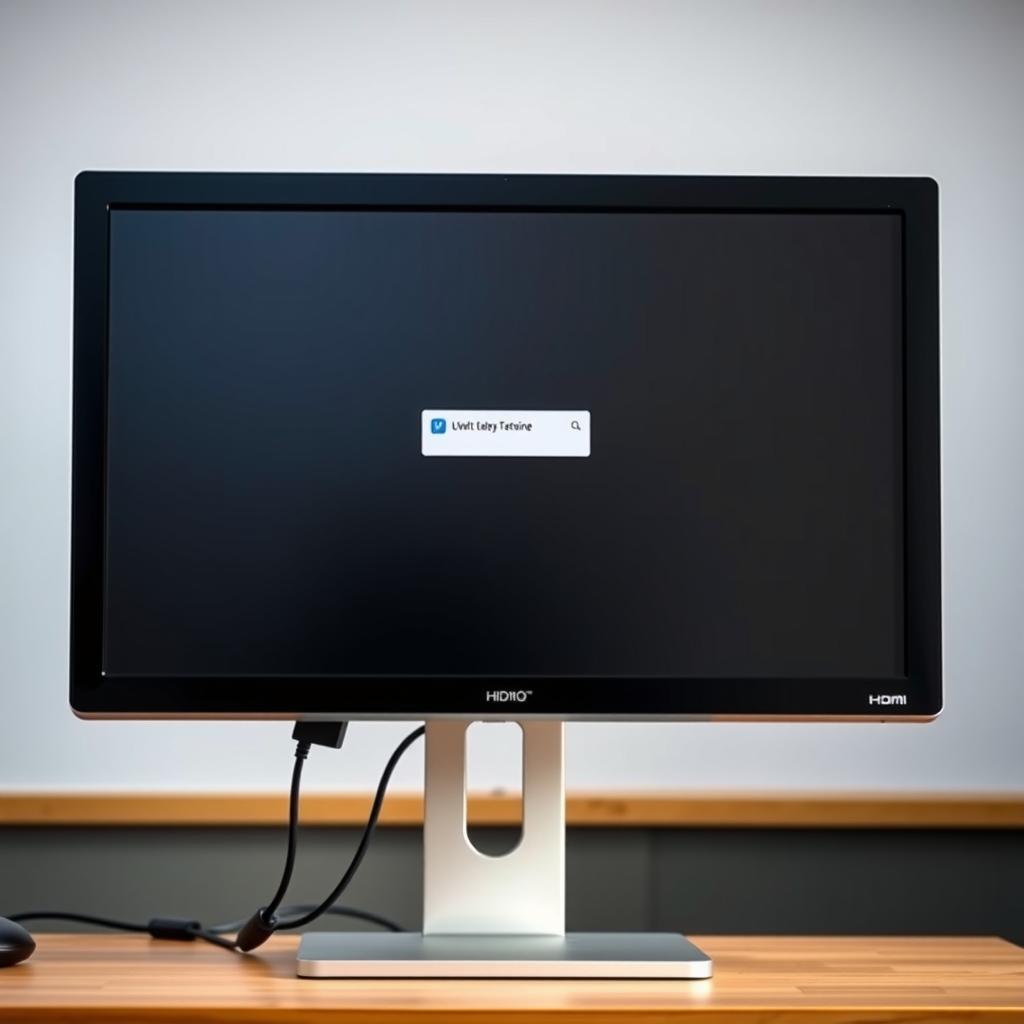
Why does my monitor say no signal? It is not getting a picture from your PC, and the cause is usually the cable, the input setting or the wrong port, not a dead computer. Check that the monitor is set to the right input, reseat both ends of the cable and make sure it is plugged into the graphics card. If a different cable fixes it, replace the old one with a certified HDMI or DisplayPort cable so it stays fixed.
Free fix vs. permanent fix
Check input, port and cable ends
- Press the monitor's input button and pick the right port
- Unplug and firmly replug both ends of the cable
- Use the graphics card port, not the motherboard port
- Test the monitor with a laptop or another cable
How long it lasts: Forever if the cause was a loose plug or wrong input. It can come back if the cable itself is damaged.
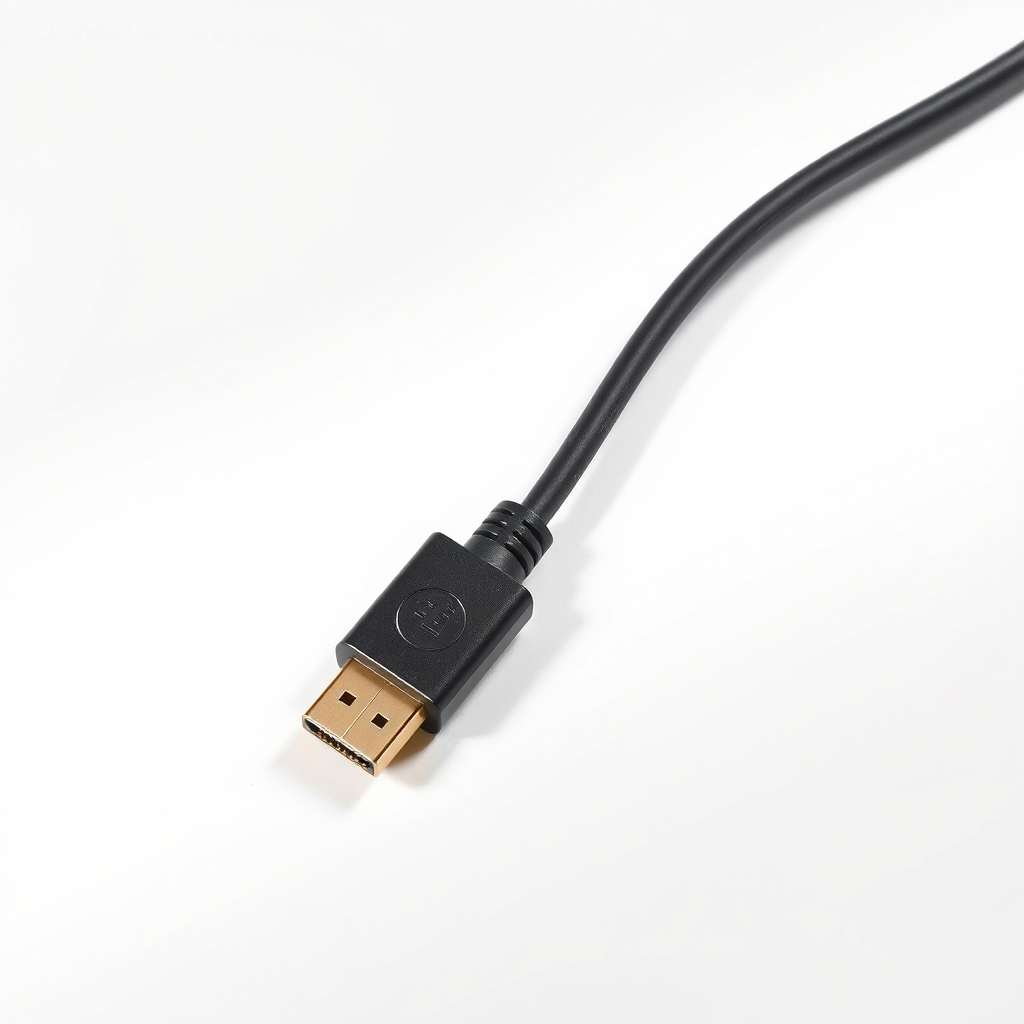
A certified HDMI cable that matches your monitor
Free steps fix a loose or wrong connection. If a different cable fixes the problem, the old one has a worn plug or a broken wire, and no setting will repair it. A certified replacement matched to your monitor ends the dropouts.
What to get: Certified HDMI cable
How long it lasts: Years. A well-made certified cable keeps a solid connection and handles the resolution and refresh rate your monitor needs.
As an Amazon Associate I earn from qualifying purchases.
What you'll need
-
A laptop or second device
Plug the monitor into it to see whether the monitor works
You have it -
A spare HDMI or DisplayPort cable
Any cable you already own, to swap in as a test
You have it - Our pick Illustration
Certified HDMI cable
Match the version to your monitor and keep it short
- Illustration
VESA-certified DisplayPort cable
For high-refresh or high-resolution PC monitors that use DisplayPort
Why it happens
The monitor is on the wrong input
Most monitors have two or three ports. If it is set to HDMI 2 and your cable is in HDMI 1, it will show no signal even though everything is working.
A loose or half-seated plug
A cable that has been bumped or only half pushed in can lose contact. The screen may flash, then go dark.
The cable is in the wrong port on the PC
If your PC has a separate graphics card, the display must plug into the card. The motherboard ports are usually switched off when a card is installed.
A damaged or low-quality cable
Bent plugs, a pinched wire, an uncertified cable or a very long one can drop the signal, especially at 4K.
The PC is asleep or the graphics driver froze
A PC that is asleep, not fully booted or running a crashed driver sends nothing to the monitor.
Try this first (free)
Do these in order, starting with the simplest.
-
Check the power and the input source
Make sure the monitor's power light is on. Press its input or source button and cycle through HDMI, DisplayPort and any other ports until you land on the one your cable is plugged into.
-
Reseat the cable at both ends
Switch the monitor and PC off, unplug the video cable from both ends, then push it back in until it seats firmly. Look for bent pins or a plug that does not click in.
-
Plug into the graphics card, not the motherboard
On a desktop with a separate graphics card, the card's ports sit on a plate lower on the back of the PC. Move the cable there. Try a second port on the card too.
-
Swap the cable and test the monitor
Tool used: A spare HDMI or DisplayPort cablePlug a different cable between the same two devices. Then connect the monitor to a laptop. If it shows a picture, the monitor is fine and the problem is the PC or the cable.
-
Wake or restart the graphics driver
Press a key or move the mouse. On Windows, press Windows, Ctrl, Shift and B together to restart the graphics driver, or press Windows and P to check the display mode. If nothing changes, unplug the monitor's power for 30 seconds and restart the PC.
-
Replace the cable if only that swap fixes it
Tool used: Certified HDMI cableIf a different cable brings the picture back, retire the old cable. Buy a certified one with the right rating for your monitor and keep it as short as your setup allows.
IllustrationCheck price on AmazonTool for this step
Certified HDMI cable · Match the version to your monitor and keep it short
When free fixes aren't enough
If a different cable works, the old cable was the fault, and a certified replacement is the lasting fix. If the screen flashes on and off, drops out at 4K or high refresh, or only works when you wiggle the plug, the cable is on its way out. If the monitor stays blank on every cable and a laptop, the monitor itself may be faulty. If the PC fans spin and nothing shows up even on another monitor, it is a PC problem, and a repair shop can look at it. If you smell burning or see scorch marks on a plug, unplug everything and stop.
Buy the fix
Still stuck after the free fixes? These are the products we would look at.
| Pick | Product | Fixes | Who it's for | Buy |
|---|---|---|---|---|
| Best pick | Certified HDMI cable | dropouts and no signal caused by a weak or damaged HDMI cable | Anyone whose monitor connects by HDMI and who just found that a different cable works. | Check price |
| Upgrade pick | VESA-certified DisplayPort cable | dropouts and flicker at high refresh rates or high resolution | Gamers and people running 1440p or 4K at 120 Hz or above, whose monitor and graphics card both have DisplayPort. | Check price |
Certified HDMI cable
Fixes: dropouts and no signal caused by a weak or damaged HDMI cable
Look for: Certified by the HDMI program, with the authentication label on the pack; A rating that covers your monitor: Premium High Speed for 4K at 60 Hz, Ultra High Speed for higher; Length of 6 feet or less if your desk allows; Sturdy plug housings and a snug fit in the port.
- Who it's for
- Anyone whose monitor connects by HDMI and who just found that a different cable works.
- Honest downside
- Your monitor and PC both have DisplayPort and you want high refresh rates. Pick the DisplayPort cable instead.
VESA-certified DisplayPort cable
Fixes: dropouts and flicker at high refresh rates or high resolution
Look for: VESA certification mark; DisplayPort 1.4 rating or higher for high refresh or 4K; Latching plugs that click in; Length that matches the distance, not much longer.
- Who it's for
- Gamers and people running 1440p or 4K at 120 Hz or above, whose monitor and graphics card both have DisplayPort.
- Honest downside
- Your screen only has HDMI, or you run a basic 1080p display where HDMI works fine.
As an Amazon Associate I earn from qualifying purchases. We don't show prices because they change, so use the button to see today's price.
How we picked: How we picked: this page is based on monitor manuals, HDMI and DisplayPort certification guidance, and the problems and fixes people report in cable reviews. We do not test products by hand.
Why is my monitor saying no signal or not connecting to my PC?
For a monitor not connecting to your PC, a monitor not detecting PC, or a monitor not getting signal from PC, go in this order:
- Power light on? Input set to the right port?
- Both cable ends firmly in?
- Cable in the graphics card port?
- A different cable works?
- Monitor works on a laptop?
The first step that changes the result tells you where the fault is. The same order fixes a monitor not being detected after a restart.
How to fix a monitor black screen
For a monitor black screen, press a key to wake the PC first. On Windows, Windows + Ctrl + Shift + B restarts the graphics driver. Then check the input source and cable. If the logo shows at startup and then the screen goes black, suspect the driver.
Desktop cable not connected message
Some monitors show a cable not connected message on a desktop PC. That means no video signal is arriving on the port the monitor is listening to. The fix is the same: right input, firm plugs, graphics card port.
What to skip
Ultra-cheap long cables and gold-plated claims
A very long, uncertified cable is a common source of flicker and dropouts. Gold plating and fancy braiding do not change the picture. Buy a certified cable, as short as your desk allows.
Frequently asked questions
Why does my monitor keep saying no signal?
Monitor not detecting HDMI: what should I check first?
Why is my monitor not displaying anything but the PC is on?
Monitor keeps going into standby mode. What causes it?
Related problems
 Free fix inside
Home Office & Cables · Monitor
Why Does My Monitor Keep Flickering? The Cable Swap That Fixes It
Read the fix Free fix inside
Home Office & Cables · Monitor
Monitor Not Turning On? Test the Power Cord Before You Panic
Read the fix Free fix inside
Home Office & Cables · Monitor
Laptop Not Detecting Your Monitor? Adapter and Dock Fixes
Read the fix Free fix inside
Home Office & Cables · Monitor
Why Does My Monitor Have No Sound? The Speaker Fix
Read the fixAs an Amazon Associate I earn from qualifying purchases. Affiliate disclosure