How to Fix Your Microphone on a Zoom Call: Cable, Port, or Mic
Most Zoom mic problems are a wrong setting, a blocked permission or a bad cable. Check those in order, then add a USB mic if the sound is still thin.
By Jamilur Rahman Updated November 5, 2026 · 7 min read
- Time
- 10 min
- Cost
- $50-$150
- Difficulty
- Easy
In this guide
Quick answer
How to fix a microphone on a Zoom call: check three things in order. Are you muted, is Zoom set to the right microphone, and does your computer let Zoom use it? Then try another USB port or cable. If the mic works but you sound thin or far away, a USB desktop microphone is the lasting fix because it sits close to your mouth and plugs in without drivers.
Free fix vs. permanent fix
Check mute, settings, permission and cable
- Unmute in Zoom and on any headset button
- Pick the right microphone in Zoom audio settings
- Allow Zoom to use the mic in your computer's privacy settings
- Try another USB port or cable
How long it lasts: Fixes a dead or missing mic for good. It will not make a weak laptop mic sound clearer.
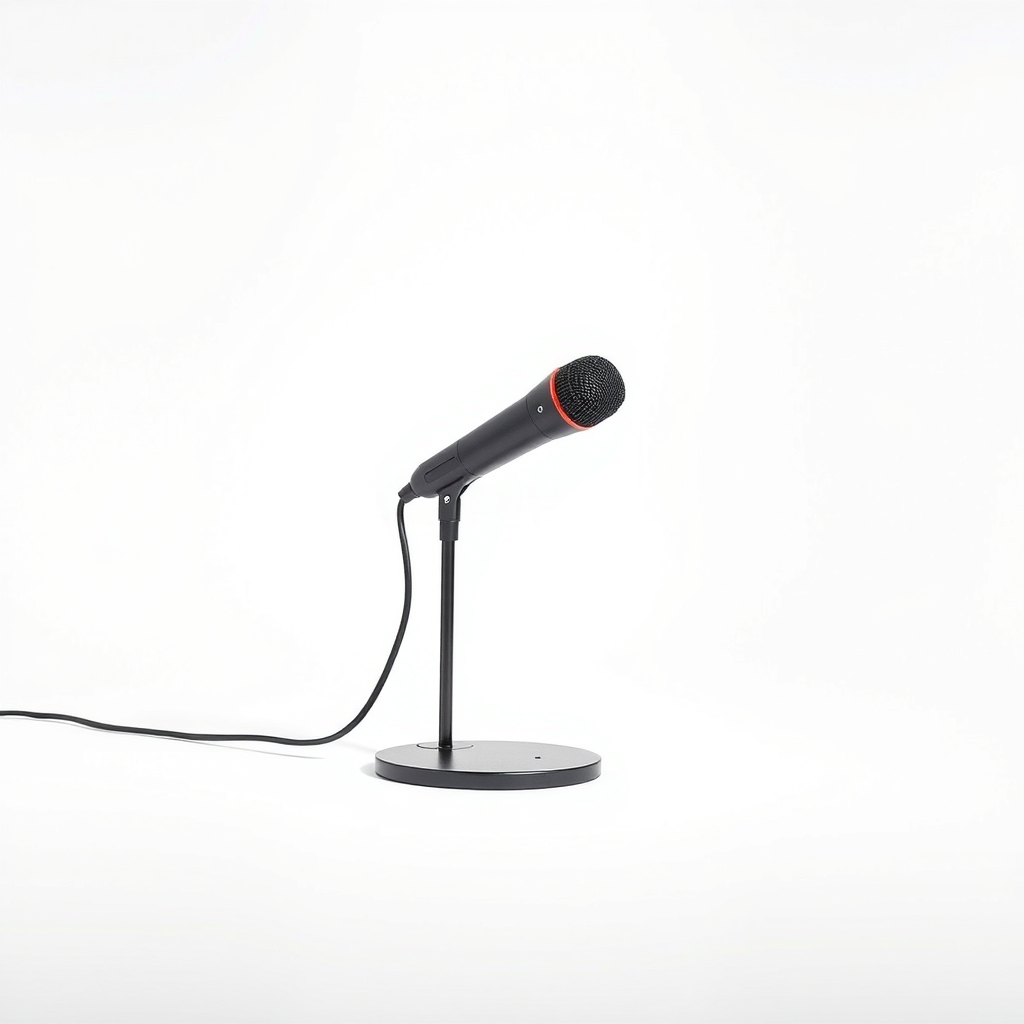
A USB desktop microphone
A laptop mic sits far from your mouth and picks up keys and fans. A USB desk mic is close, aims at you and often has a mute button and a headphone jack. It also gives you a clear hardware switch when a call is going wrong.
What to get: USB desktop microphone
How long it lasts: Years. It plugs into the computer and Zoom treats it as a normal mic.
As an Amazon Associate I earn from qualifying purchases.
What you'll need
-
Headphones or earbuds with a mic
A quick test to see if your built-in mic is the problem
You have it -
A different USB port or cable
Ports and cables fail more often than mics
Free - Our pick Illustration
USB desktop microphone
The lasting fix for thin or distant sound
- Illustration
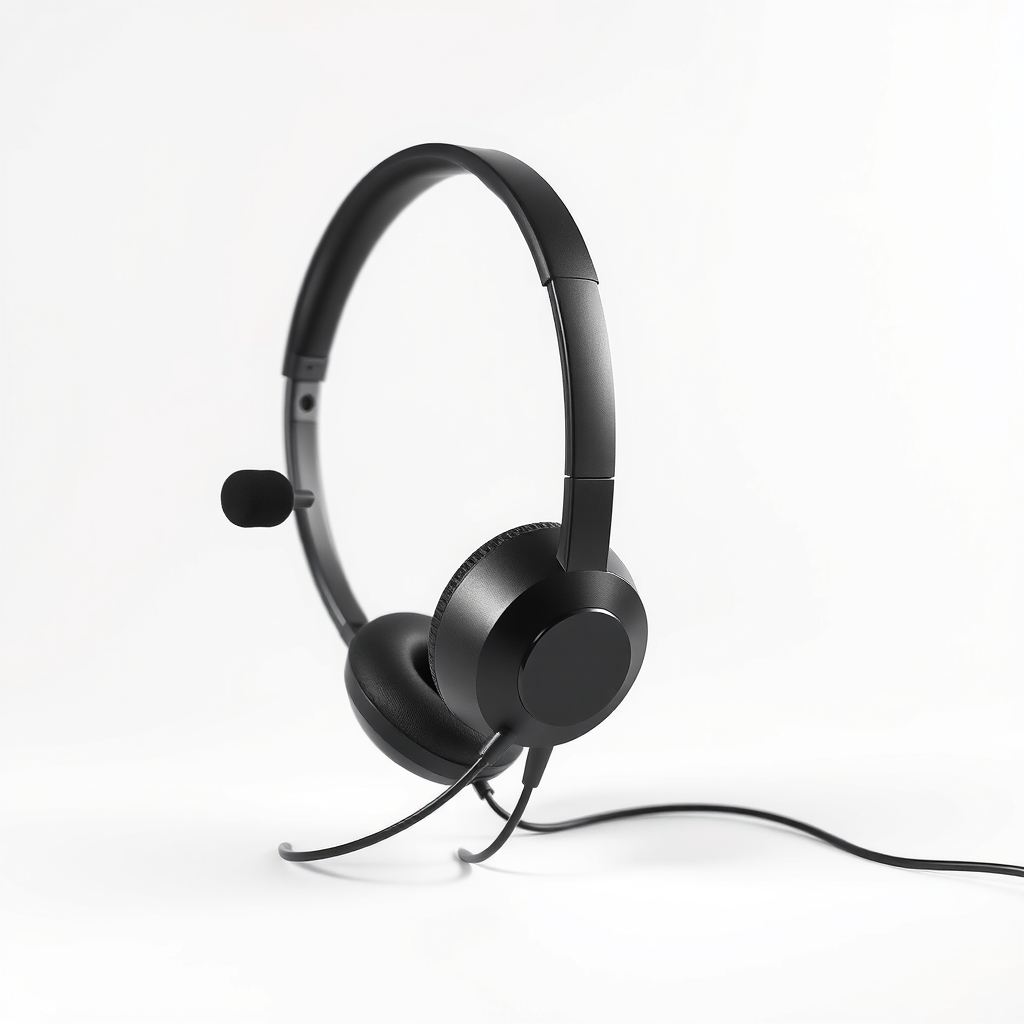
Wired headset with boom mic
A cheaper way to get a mic near your mouth
Why it happens
Muted or the wrong mic selected
Zoom has its own mute button, your headset may have another and the computer has a third. Zoom also picks a default mic that is often the wrong one after you plug in a new device.
Computer privacy settings
Windows and macOS block apps from the microphone until you allow them. A recent update or a click on Do Not Allow can switch Zoom off.
A bad cable or port
A loose or worn USB cable, a dead port or a hub with too many devices can cut the mic out. It may work in one port and not another.
Another app using the mic
On some computers, another call app or recorder can hold the mic, so Zoom hears nothing or a faint signal.
A weak built-in mic
A laptop mic works at arm's length. It picks up keys, fans and echo from the room, so people hear a hollow voice.
Try this first (free)
Do these in order, starting with the simplest.
-
Check every mute button
Look for the red slash on the Zoom mute button, then any mute switch on your headset or mic. On a laptop, check the keyboard mic key too.
-
Pick the right mic in Zoom
In a meeting, click the arrow next to Mute and choose your microphone. In Settings, open Audio and use the test button. Speak and look for the level bar to move.
-
Allow Zoom to use the microphone
On a Mac, open System Settings, Privacy and Security, Microphone and turn Zoom on. On Windows, open Settings, Privacy and security, Microphone and allow apps to use it. Restart Zoom after you change it.
-
Swap the port and the cable
Tool used: A different USB port or cableUnplug the mic, then plug it into a different USB port on the computer itself, not through a hub. Try another cable if you have one.
-
Test with a headset
Tool used: Headphones or earbuds with a micPlug in headphones that have a mic. If Zoom hears them, your built-in mic or its setting is the problem. If it still hears nothing, the issue is in the app or the privacy settings.
When free fixes aren't enough
If Zoom shows a level bar and people can hear you, the mic works. If they say you sound far away, echoey or full of keyboard noise, the built-in mic is the limit, since settings cannot add a closer mic. That is the point where a USB desktop mic or a wired headset pays off. If the mic is not seen on any USB port, in any app, or the computer says the device is not recognized, the mic or the cable is broken and should be replaced.
Buy the fix
Still stuck after the free fixes? These are the products we would look at.
| Pick | Product | Fixes | Who it's for | Buy |
|---|---|---|---|---|
| Best pick | USB desktop microphone | a thin, distant voice and noisy room pickup on calls | Someone who takes calls every day and wants a clear voice without wearing a headset. | Check price |
| Budget pick | Wired headset with boom microphone | a mic that is too far from your mouth, in a noisy room | People in a busy house or shared space who need to block background noise. | Check price |
USB desktop microphone
Fixes: a thin, distant voice and noisy room pickup on calls
Look for: A USB connection that works without a driver; A cardioid pattern, so it hears you and not the room; A mute button or mute light you can see; A stand that holds it about a hand from your mouth.
- Who it's for
- Someone who takes calls every day and wants a clear voice without wearing a headset.
- Honest downside
- You work in a loud shared room, since a desk mic hears more of it than a headset. Use a boom headset instead.
Wired headset with boom microphone
Fixes: a mic that is too far from your mouth, in a noisy room
Look for: A boom mic that sits near the corner of your mouth; A USB or 3.5 mm plug that matches your computer; An inline mute switch; A light and comfortable fit for long calls.
- Who it's for
- People in a busy house or shared space who need to block background noise.
- Honest downside
- You dislike wearing a headset all day, or you need to hear the room.
As an Amazon Associate I earn from qualifying purchases. We don't show prices because they change, so use the button to see today's price.
How we picked: How we picked: this page is based on the video-call app's help pages, computer privacy settings guides, and the mic problems and fixes people report in owner reviews. We do not test products by hand.
How to fix Zoom call audio when you cannot hear other people
That is a speaker problem, not a mic problem. In Zoom, open Settings, Audio, and choose the right speaker, then press Test Speaker. Check that your computer volume is up and not routed to a monitor or Bluetooth device that is off. If you joined by phone, tap Join Audio and pick computer audio.
Where to put a desk mic
Place it about a hand to a hand and a half from your mouth, pointing at you, below your chin line and away from the keyboard. Set the gain so your voice peaks in the middle of the level bar.
What to skip
Reinstalling Zoom and buying an expensive studio mic
Reinstalling Zoom rarely helps if the mic works in other apps. A studio mic with an audio box and cables is overkill for calls. A plain USB mic or headset gives you most of the benefit.
Frequently asked questions
Why is my Zoom call audio not working?
How to fix Zoom call audio when it cuts in and out?
Why does Zoom not detect my USB microphone?
Is a USB microphone better than a laptop mic?
Related problems
 Free fix inside
Home Office & Cables · Video Calls
Why Does My Zoom Call Echo? The Quick Cause and the Headset Fix
Read the fix Free fix inside
Home Office & Cables · Video Calls
Why Is My Zoom Call So Quiet? Speaker and Mic Fixes That Help
Read the fix Free fix inside
Home Office & Cables · Video Calls
Why Do My Zoom Calls Keep Freezing? Plug In Instead of Using Wi-Fi
Read the fix Free fix inside
Home Office & Cables · Laptop
Why Is My Laptop Fan So Loud? Dust Is the Usual Reason
Read the fixAs an Amazon Associate I earn from qualifying purchases. Affiliate disclosure