Why Does My Zoom Call Echo? The Quick Cause and the Headset Fix
Echo means a microphone is hearing someone's speakers. Fix it in minutes with the free steps, then a USB headset keeps it from coming back.
By Jamilur Rahman Updated November 5, 2026 · 7 min read
- Time
- 10 min
- Cost
- $20-$50
- Difficulty
- Easy
In this guide
Quick answer
Why does my Zoom call echo? A microphone is picking up sound from speakers and sending it back, so people hear themselves a moment later. Put on any wired headphones, join from one device only and mute when you are not talking. If you take calls often, a USB headset with a microphone stops the echo at the source, because your mic never hears your speakers.
Free fix vs. permanent fix
Headphones you already own, plus a quick settings check
- Plug in wired earbuds or headphones before you join
- Join audio from one device only
- Mute whenever you are not talking
- Pick the right speaker and mic in your call app and run its test
How long it lasts: As long as you remember to put them on and nobody else on the call is using speakers. Laptop speakers and a laptop mic echo again the moment you skip the headphones.
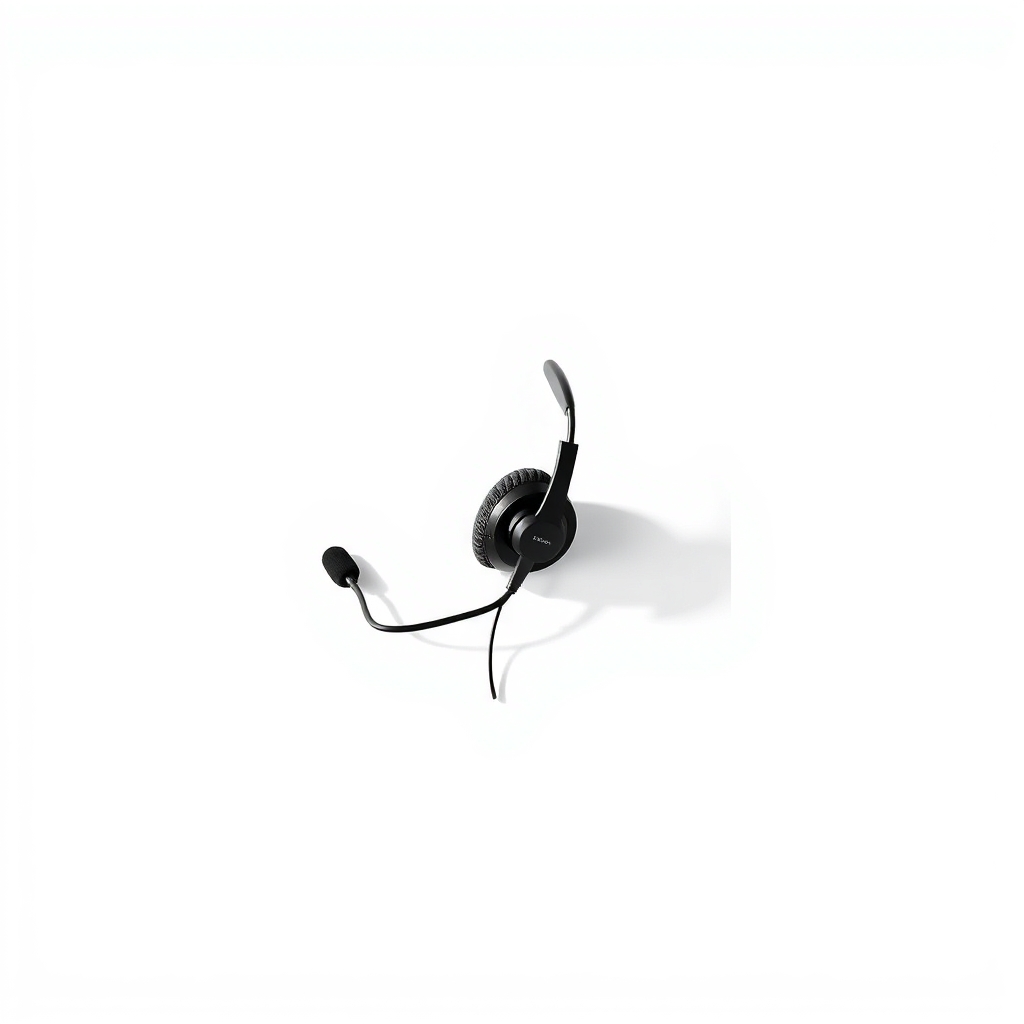
A USB headset with a microphone
Echo happens when a mic and speakers sit in the same space. A headset puts sound in your ears and the mic an inch from your mouth, so the mic hears you and not the room. It is the one fix that does not depend on remembering a step.
What to get: USB headset with microphone
How long it lasts: Years. It stays plugged in and ready, so you never hunt for earbuds before a call.
As an Amazon Associate I earn from qualifying purchases.
What you'll need
-
Headphones you already own
Any wired pair works for a first test
You have it -
Zoom or Teams audio settings
Test speaker and mic before the call
Free - Our pick Illustration
USB headset with microphone
The lasting fix for people on calls every week
- Illustration
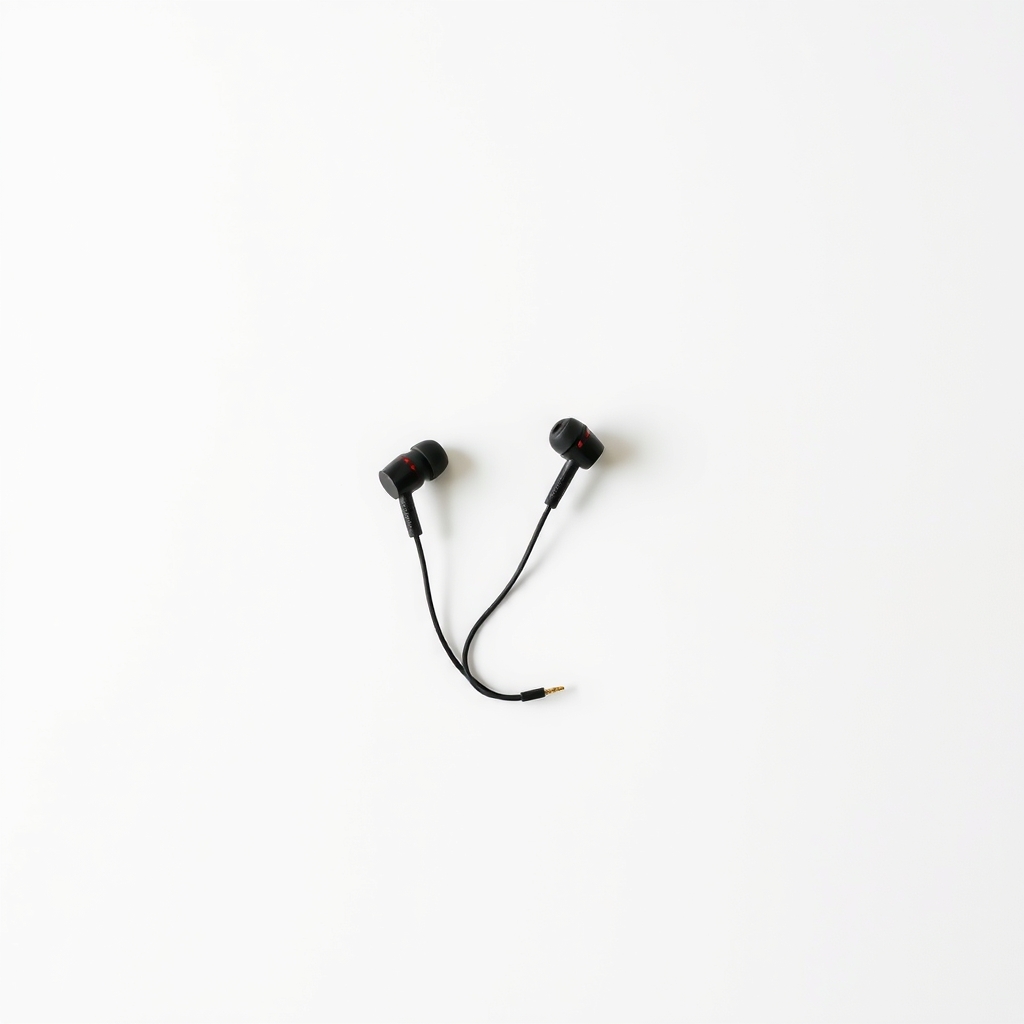
Wired earbuds with inline mic
A cheap fix if you own no headphones
- Illustration
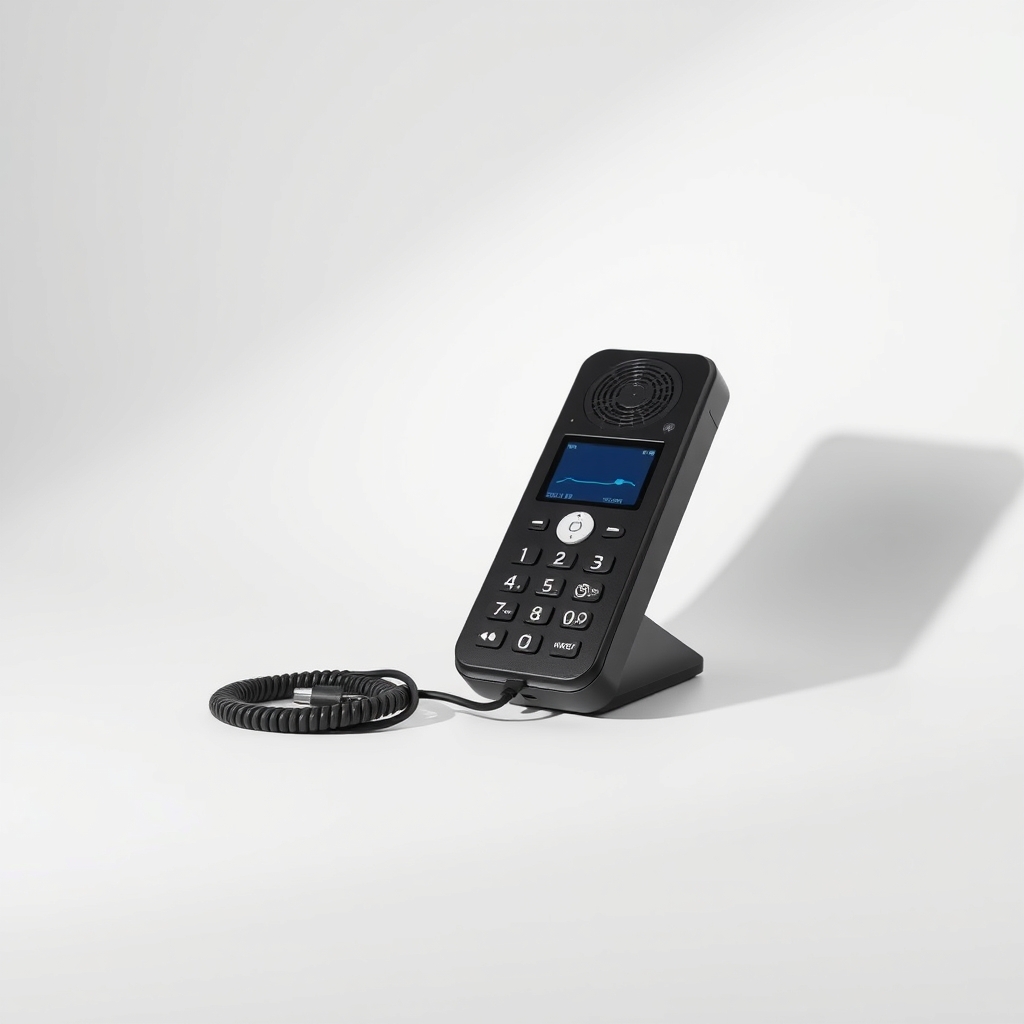
USB speakerphone
For small rooms where nobody wants a headset
Why it happens
Speakers feeding the microphone
A laptop has speakers and a mic a few inches apart. The mic hears the people talking, sends their voices back to them, and they hear themselves with a short delay.
Someone else on the call has the problem
If you hear your own voice come back a moment after you speak, your sound is leaving their speakers and entering their mic. Nothing in your settings can fix that.
Two devices in the same meeting
A laptop and a phone both joined with audio in the same room hear each other. The result is echo or a loud squeal.
A hard, bare room and a hot mic
Glass, tile and bare walls bounce sound around. A mic volume set too high picks up even more of it.
Try this first (free)
Do these in order, starting with the simplest.
-
Put on headphones before you join
Tool used: Headphones you already ownPlug in any wired headphones or earbuds. Sound goes to your ears, not the room, so the mic has nothing to pick up. Bluetooth works, but it can add a little delay.
-
Join audio from one device only
If you also joined from a phone or a second laptop in the same room, leave the audio on one of them. Keep the other one muted or on video only.
-
Mute when you are not talking
A muted mic sends nothing back. This is the fastest fix on a call you cannot leave.
-
Check the right devices are chosen
Tool used: Zoom or Teams audio settingsIn Zoom, open Settings, then Audio. Pick your headphones as both speaker and mic, then run Test Speaker and Test Mic. In Teams, use Settings, then Devices. Leave Suppress background noise on Auto, and try Medium if the echo stays.
-
Ask the person whose voice sounds doubled
If you hear echo and your own setup is clean, the cause is on their side. Ask them to mute, put on headphones or turn off a second device that is also on the call.
When free fixes aren't enough
If you do not own headphones, or you keep digging for earbuds before each call, the free fix gets old fast. Wired earbuds tangle and Bluetooth buds run out of battery at the worst moment. On a laptop with no headset, the mic and speakers sit a few inches apart, so echo returns when a call gets louder. A USB headset with a boom mic fixes the cause: the mic hears you, not your speakers. If echo continues with a headset on, check that it is selected as both speaker and mic in the app, or the echo is on someone else's end.
Buy the fix
Still stuck after the free fixes? These are the products we would look at.
| Pick | Product | Fixes | Who it's for | Buy |
|---|---|---|---|---|
| Best pick | USB headset with microphone | your mic picking up your speakers | Anyone on several calls a week, or anyone whose laptop has a weak mic or a tricky headphone jack. | Check price |
| Budget pick | Wired earbuds with inline microphone | echo from speakers, on a tight budget | Someone who needs a quick fix this week and takes only a few calls. | Check price |
| Upgrade pick | USB speakerphone | echo when two or more people share one room and do not want headsets | Small meeting rooms or family calls with several people in the room. | Check price |
USB headset with microphone
Fixes: your mic picking up your speakers
Look for: A boom mic that sits near your mouth, ideally noise-cancelling; A plain USB plug, so it works without a headphone jack; A mute button on the cord or ear cup; Padded ear cups and an adjustable band for long calls.
- Who it's for
- Anyone on several calls a week, or anyone whose laptop has a weak mic or a tricky headphone jack.
- Honest downside
- Your device has only a USB-C port and no adapter, or you dislike over-ear headsets. Check the plug type first.
Wired earbuds with inline microphone
Fixes: echo from speakers, on a tight budget
Look for: A plug that matches your device, either 3.5 mm or USB-C; An inline mic that sits close to your mouth; A fit you can wear for an hour.
- Who it's for
- Someone who needs a quick fix this week and takes only a few calls.
- Honest downside
- Your computer has a separate headphone jack with no mic input. Check the port before you buy.
USB speakerphone
Fixes: echo when two or more people share one room and do not want headsets
Look for: Echo cancellation listed in the specs; A pickup range that matches your room size; A plain USB connection and a mute button.
- Who it's for
- Small meeting rooms or family calls with several people in the room.
- Honest downside
- You are alone at a desk. A headset costs less and picks up your voice better.
As an Amazon Associate I earn from qualifying purchases. We don't show prices because they change, so use the button to see today's price.
How we picked: How we picked: this page is based on Zoom and Microsoft Teams audio help guides, headset and speakerphone spec sheets, and the problems and fixes people report in reviews. We do not test products by hand.
Whose echo is it? A 30-second check
- Others say they hear themselves: your mic is picking up your speakers. Use headphones.
- You hear your own voice come back: the echo is on their end. Ask them to mute or wear headphones.
- A loud squeal when you join: two devices in one room are on the same call. Mute one.
- Echo only in one room: bare walls and hard floors are bouncing the sound. A rug or curtains help a little.
What to skip
Cranking up the mic volume and add-on echo-remover apps
A louder mic hears more of the room and more of the speakers, which makes echo worse. Zoom and Teams already include echo cancellation, and add-on apps add delay while rarely fixing the cause.
Frequently asked questions
Why is my Zoom call echoing, or why is the Zoom call echoing for just one person?
How to stop echo on Zoom calls, and how to fix echo on a Zoom call right now?
How to get rid of echo on a Teams call?
How to get rid of echo on a video call, or on any call?
Related problems
 Free fix inside
Home Office & Cables · Video Calls
How to Fix Your Microphone on a Zoom Call: Cable, Port, or Mic
Read the fix Free fix inside
Home Office & Cables · Video Calls
Why Is My Zoom Call So Quiet? Speaker and Mic Fixes That Help
Read the fix Free fix inside
Home Office & Cables · Video Calls
Why Do My Zoom Calls Keep Freezing? Plug In Instead of Using Wi-Fi
Read the fix Free fix inside
Home Office & Cables · Wifi
Why Is My Wi-Fi So Slow on My PC? A Cheap Adapter Often Fixes It
Read the fixAs an Amazon Associate I earn from qualifying purchases. Affiliate disclosure