Why Is My Laptop So Slow? The SSD Upgrade Most People Skip
A slow laptop is often a full drive, too many startup apps or an old spinning hard drive. Clean up first, then swap in an SSD if yours is still a hard drive.
By Jamilur Rahman Updated November 5, 2026 · 7 min read
- Time
- 30 min to clean up, 1-2 hours for the upgrade
- Cost
- $50-$150
- Difficulty
- Medium
In this guide
Quick answer
Why is my laptop so slow? Usually the drive is nearly full, too many apps start with the computer, or the laptop still has a spinning hard drive. Clear space, trim startup apps and check what is using the disk. If the disk shows 100 percent while you do almost nothing and your laptop has a hard drive, an SSD upgrade is the lasting fix and often the biggest speed boost you can buy.
Free fix vs. permanent fix
Clean up and trim startup
- Restart and install pending updates
- Remove startup apps and browser extensions you do not use
- Free up space so at least 15 percent of the drive is empty
- Run a malware scan with your built-in security tool
How long it lasts: A few months. It gives back some speed, but a slow hard drive stays slow.
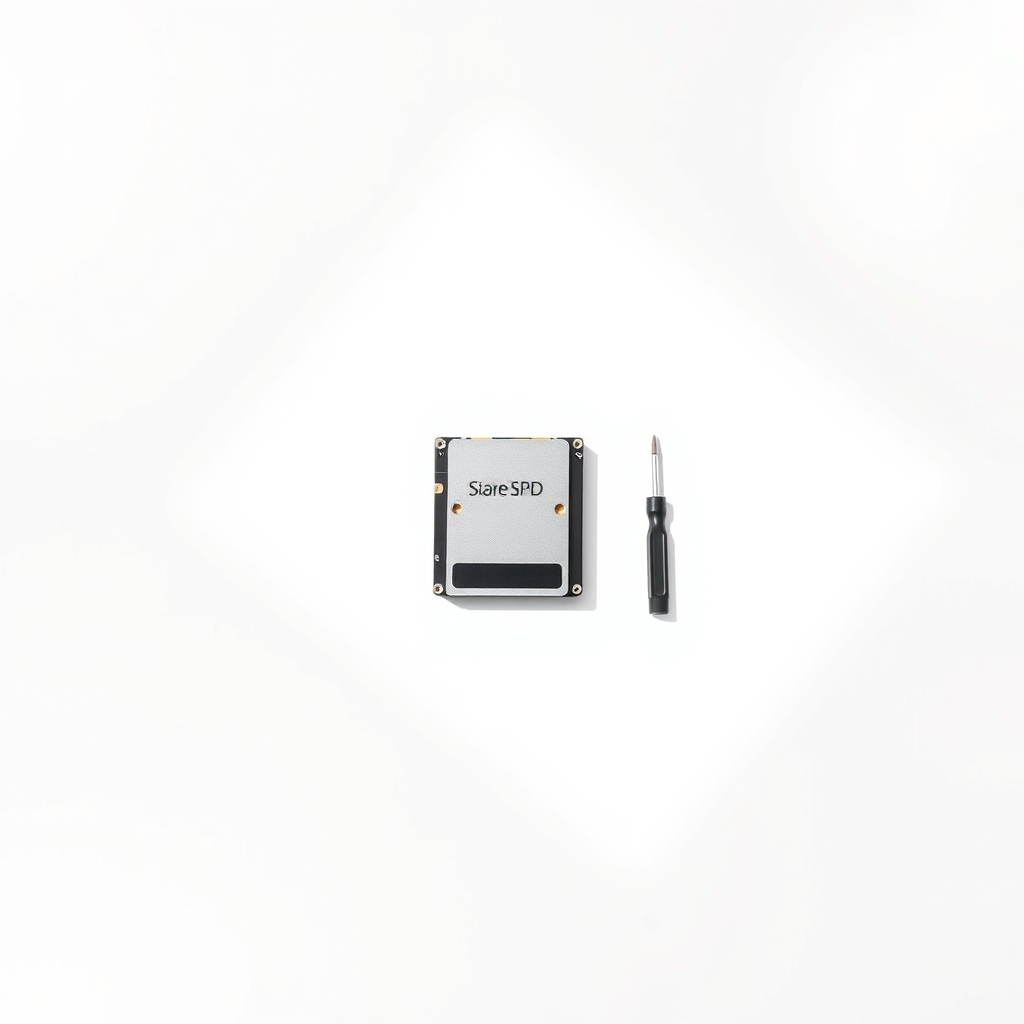
Swap the hard drive for an SSD
A spinning hard drive is the slowest part of an older laptop, and it makes everything wait. An SSD answers requests far faster, so startup, app launches and file opens speed up all at once. Many owners say an old laptop feels like a new one.
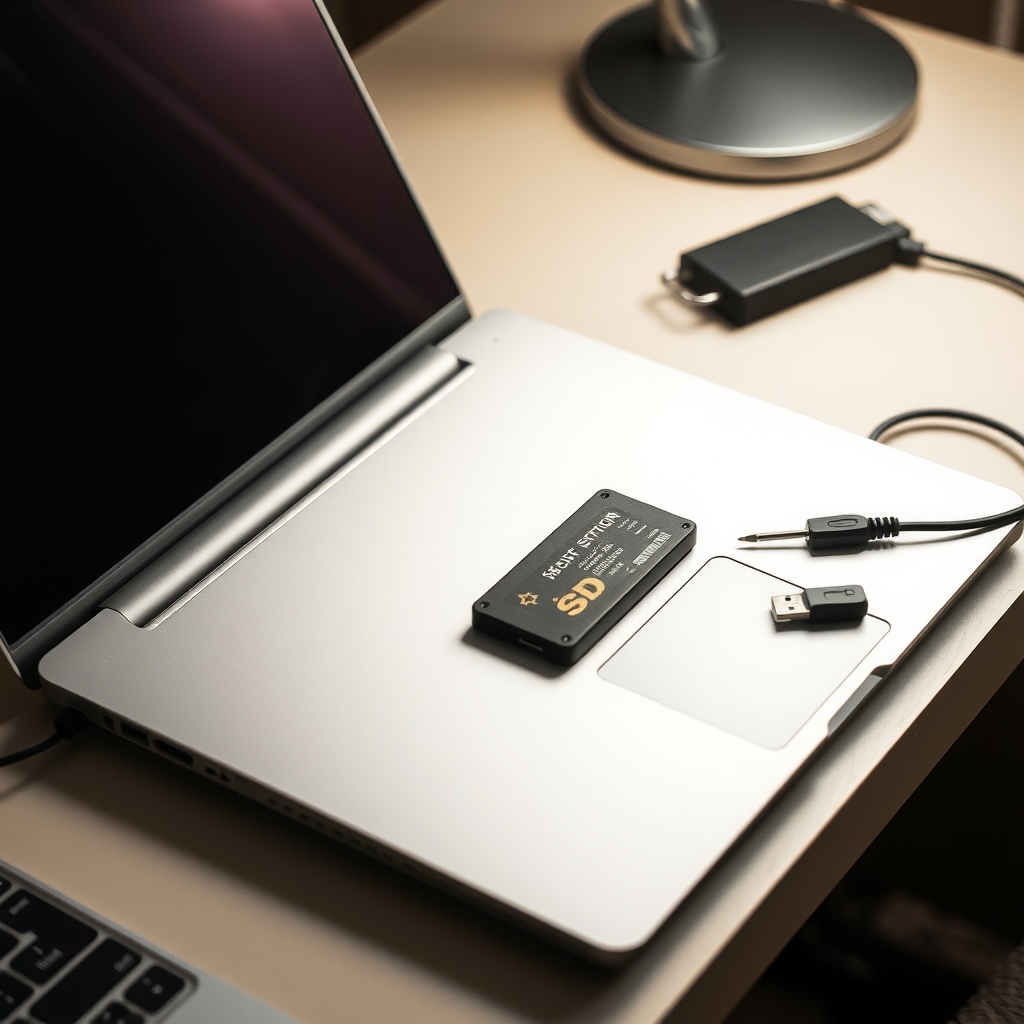
What to get: SSD upgrade kit with USB clone cable and screwdrivers
How long it lasts: For the life of the laptop. An SSD has no moving parts and opens apps and files much faster than a hard drive.
As an Amazon Associate I earn from qualifying purchases.
What you'll need
-
Task Manager or Activity Monitor
Shows what is using the disk, memory and processor
You have it -
External drive or cloud backup
Back up before you change anything
You have it - Our pick Illustration
SSD upgrade kit with USB clone cable and screwdrivers
Match the drive type to your laptop first
- Illustration
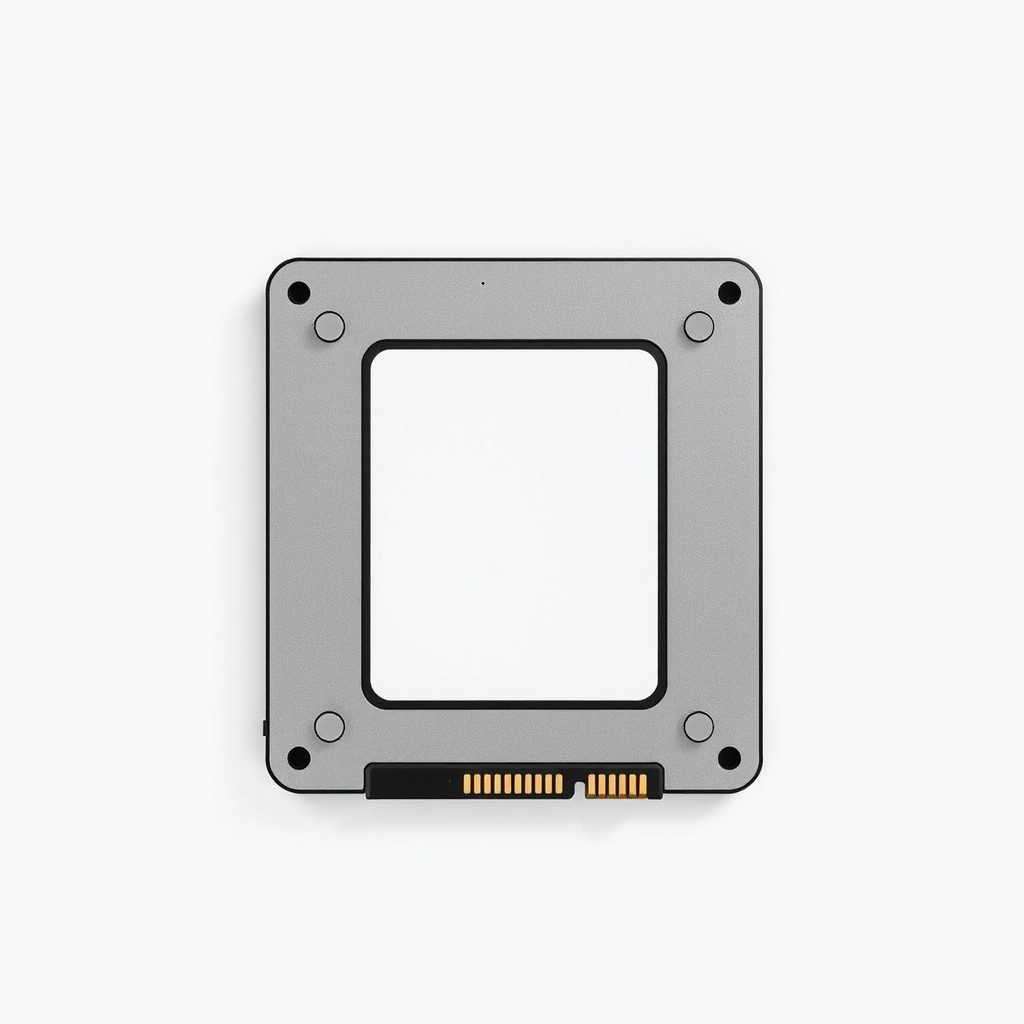
SSD on its own
If you already have a cloning cable or plan a clean install
Why it happens
A spinning hard drive
Laptops sold before about 2016 often have one. It takes long to boot and open apps, and it slows even more when the drive is nearly full.
A nearly full drive
When less than about 10 percent of the drive is free, the system has little room to work, and everything gets slower.
Too many startup apps and tabs
Chat, music, cloud sync and update tools all start with the laptop and keep using memory. A browser with dozens of tabs and extensions adds to it.
Not enough memory
With 4 GB of RAM, a modern browser and a few apps push the system into using the drive as memory, which crawls.
Malware or a pending update
Unwanted software and stuck updates can keep the processor or disk busy in the background.
Try this first (free)
Do these in order, starting with the simplest.
-
Restart and install updates
A laptop that has run for weeks builds up background tasks. Restart, then install pending system updates and restart again.
-
See what is eating the disk
Tool used: Task Manager or Activity MonitorOpen Task Manager on Windows or Activity Monitor on a Mac. If Disk sits near 100 percent while you do little, or Memory is above about 90 percent, you have found the bottleneck.
-
Trim startup apps and extensions
Tool used: Task Manager or Activity MonitorOn Windows, open the Startup tab in Task Manager and disable apps you do not need at boot. On a Mac, use Login Items. Remove browser extensions you do not use.
-
Free up space
Delete big files, empty the trash and move photos and videos to cloud storage. Aim to keep at least 15 percent of the drive free.
-
Scan and back up
Tool used: External drive or cloud backupRun a scan with your built-in security tool. Then back up your files, which you need before any upgrade.
When free fixes aren't enough
If the laptop is still slow after cleanup, check the drive type. In Windows Task Manager, open Performance, then Disk, and look for HDD or SSD. If it says HDD, an SSD will make the biggest difference you can buy for this machine. If it already says SSD, an upgrade will not help, and extra memory is a better next step. Check your model's service manual first, since many thin laptops have storage soldered to the board and cannot be swapped. Back up first and power the laptop off before you open it.
Buy the fix
Still stuck after the free fixes? These are the products we would look at.
| Pick | Product | Fixes | Who it's for | Buy |
|---|---|---|---|---|
| Best pick | SSD upgrade kit with USB clone cable and screwdrivers | slow boot and slow app launches caused by an old hard drive | Owners of an older laptop with a hard drive who want it fast again without buying a new one. | Check price |
| Budget pick | Internal SSD without the kit | the same slow drive, with fewer extras | People who already own a screwdriver set and a USB cable, or who plan a clean install. | Check price |
SSD upgrade kit with USB clone cable and screwdrivers
Fixes: slow boot and slow app launches caused by an old hard drive
Look for: The drive type your laptop uses, 2.5-inch SATA or M.2, checked in your manual; A capacity at least as big as the data you need to keep; A USB cable or enclosure for copying the old drive; A small screwdriver set for the back panel.
- Who it's for
- Owners of an older laptop with a hard drive who want it fast again without buying a new one.
- Honest downside
- Your laptop already has an SSD, or its storage is soldered. Check the manual before you buy.
Internal SSD without the kit
Fixes: the same slow drive, with fewer extras
Look for: The right shape for your laptop, SATA or M.2; A reputable brand with a multi-year warranty; A capacity that fits the data you keep.
- Who it's for
- People who already own a screwdriver set and a USB cable, or who plan a clean install.
- Honest downside
- You have never opened a laptop. The kit with a clone cable makes the copy step easier.
As an Amazon Associate I earn from qualifying purchases. We don't show prices because they change, so use the button to see today's price.
How we picked: How we picked: this page is based on laptop service manuals and the operating-system help pages on startup and storage, plus the speed-up results owners report after an SSD swap. We do not test products by hand.
Check what is inside before you buy
- Drive type: Windows Task Manager, Performance, Disk, shows HDD or SSD.
- Shape: a 2.5-inch drive looks like a small flat box. An M.2 drive is a short stick that screws onto the board.
- Model number: search it with the word service manual to see which drive fits and whether it is replaceable.
Why is my desktop so slow? The same fix, easier
A desktop tower has more room, so a 2.5-inch SSD can sit in a 3.5-inch bay with a small bracket, or an M.2 drive can go straight on the board. The same rule applies: if the old drive is a hard drive, an SSD is the biggest upgrade. Back up first.
What to skip
Registry cleaners and speed-up apps
Free cleaners and paid speed-up apps promise a faster computer, but they often do little, and some install unwanted software. Use your built-in tools to clear space and startup items, and put money into hardware if the drive is the problem.
Frequently asked questions
Why does my laptop run so slow all of a sudden?
Laptop too slow, should I buy a new one?
Why is my desktop so slow?
Will an SSD upgrade void my warranty?
Related problems
 Free fix inside
Home Office & Cables · Laptop
Why Does My Laptop Get So Hot? Cool It Down and Keep It Cool
Read the fix Free fix inside
Home Office & Cables · Laptop
Why Is My Laptop Fan So Loud? Dust Is the Usual Reason
Read the fix Free fix inside
Home Office & Cables · Wifi
Why Is My Wi-Fi So Slow on My PC? A Cheap Adapter Often Fixes It
Read the fix Free fix inside
Home Office & Cables · Laptop
Why Does My Laptop Die So Fast? A Power Bank Buys You Hours
Read the fixAs an Amazon Associate I earn from qualifying purchases. Affiliate disclosure