Why Does My Laptop Get So Hot? Cool It Down and Keep It Cool
Blocked vents, dust and heavy tasks trap heat in a laptop. Clear the airflow first, then add a cooling pad so it runs cooler for good.
By Jamilur Rahman Updated November 5, 2026 · 6 min read
- Time
- 20 min
- Cost
- $20-$50
- Difficulty
- Easy
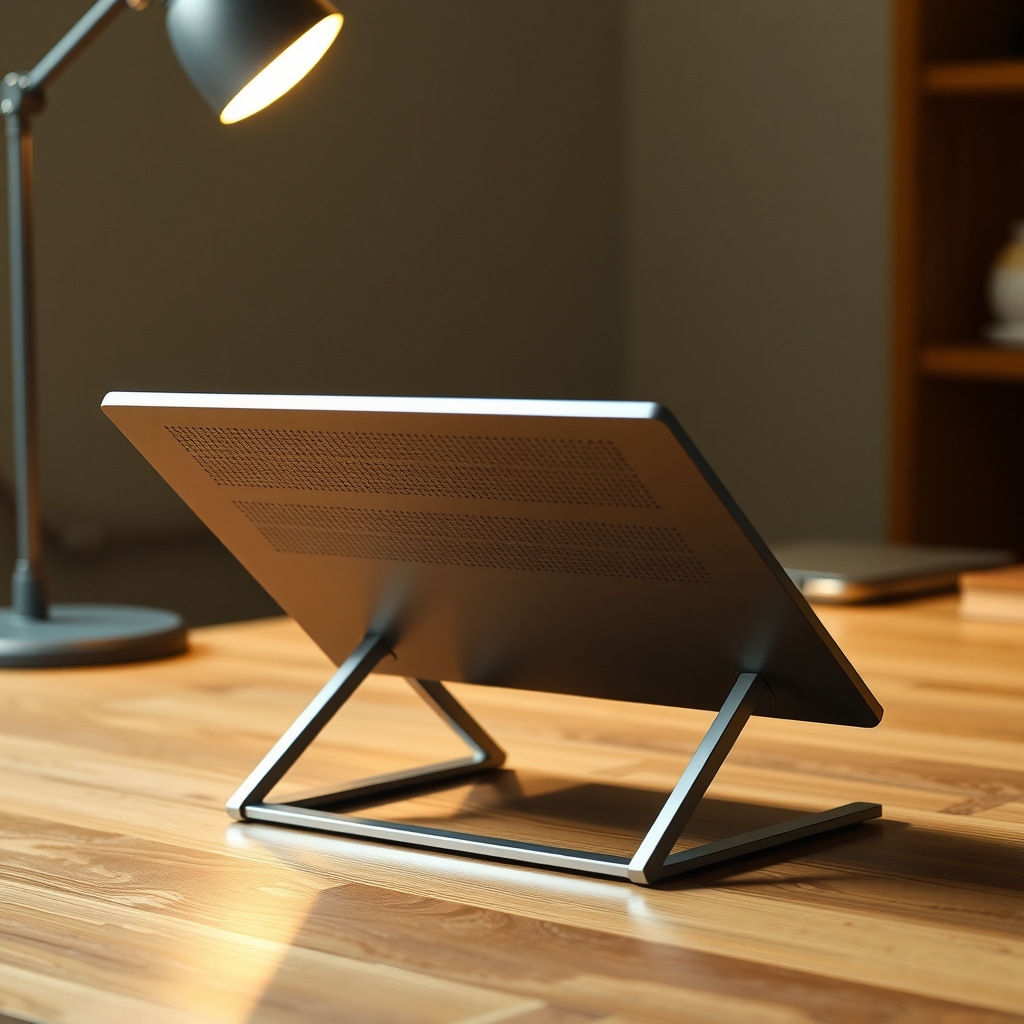
In this guide
Quick answer
Why does my laptop get so hot? Usually its vents are blocked by a bed, couch or lap, dust is clogging the fan, or heavy apps are working the processor hard. Move it to a hard surface, close what is eating the processor and blow out the vents. If it still runs hot, a laptop cooling pad pulls heat away from the base and keeps it cooler every time you use it.
Free fix vs. permanent fix
Clear the airflow and lighten the load
- Use it on a hard, flat surface with the vents clear
- Close the apps and tabs that eat the processor
- Blow dust out of the vents with short bursts of air
- Set the power mode to Balanced for everyday work
How long it lasts: Until dust builds up or you load it again. Heavy work will still push it hot.
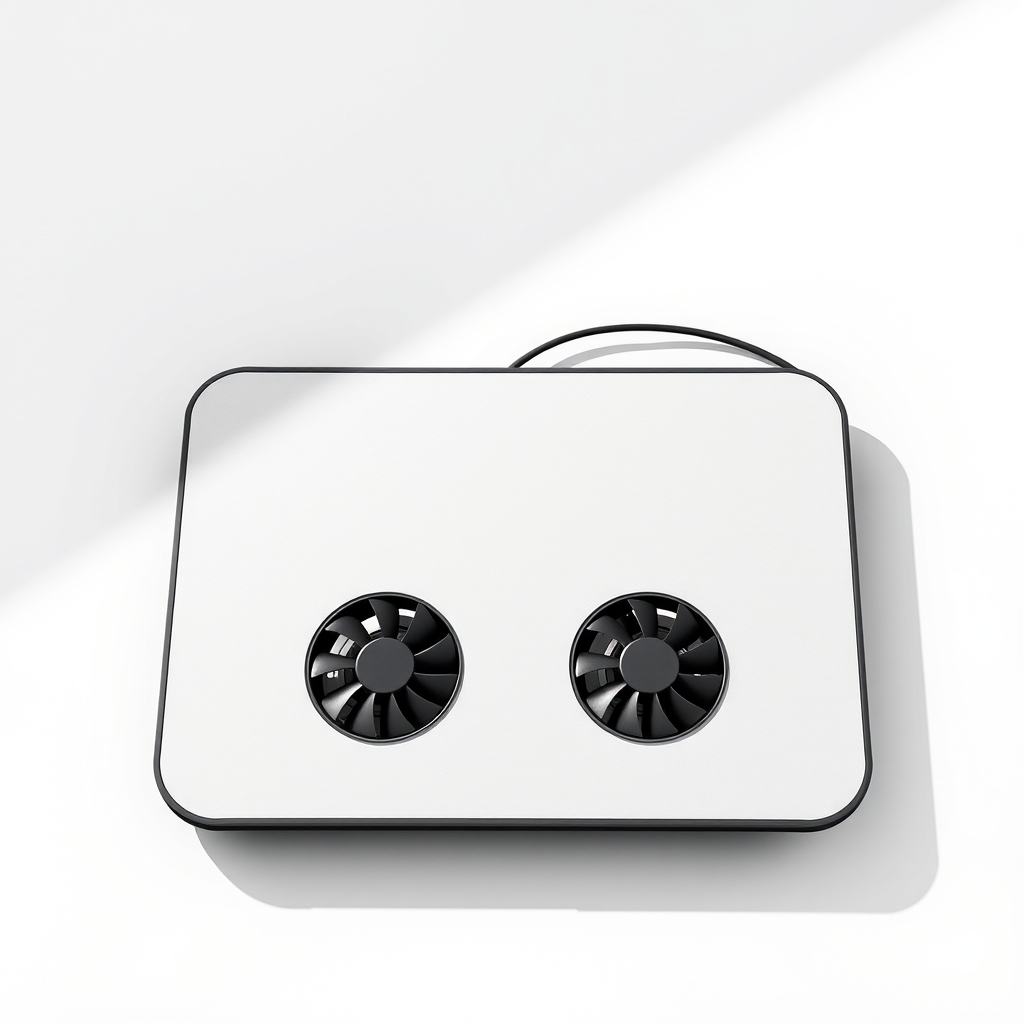
A laptop cooling pad with fans
A pad lifts the laptop and moves air across the underside, where most vents sit. Owners report cooler base temperatures and fewer fan spikes. It cannot clear dust or fix a dying fan, so clean first, then add the pad.
What to get: Laptop cooling pad with fans
How long it lasts: Years. It cools the laptop every time it sits on it.
As an Amazon Associate I earn from qualifying purchases.
What you'll need
-
Hard, flat surface
A desk or table, never a bed or couch
Free - Illustration
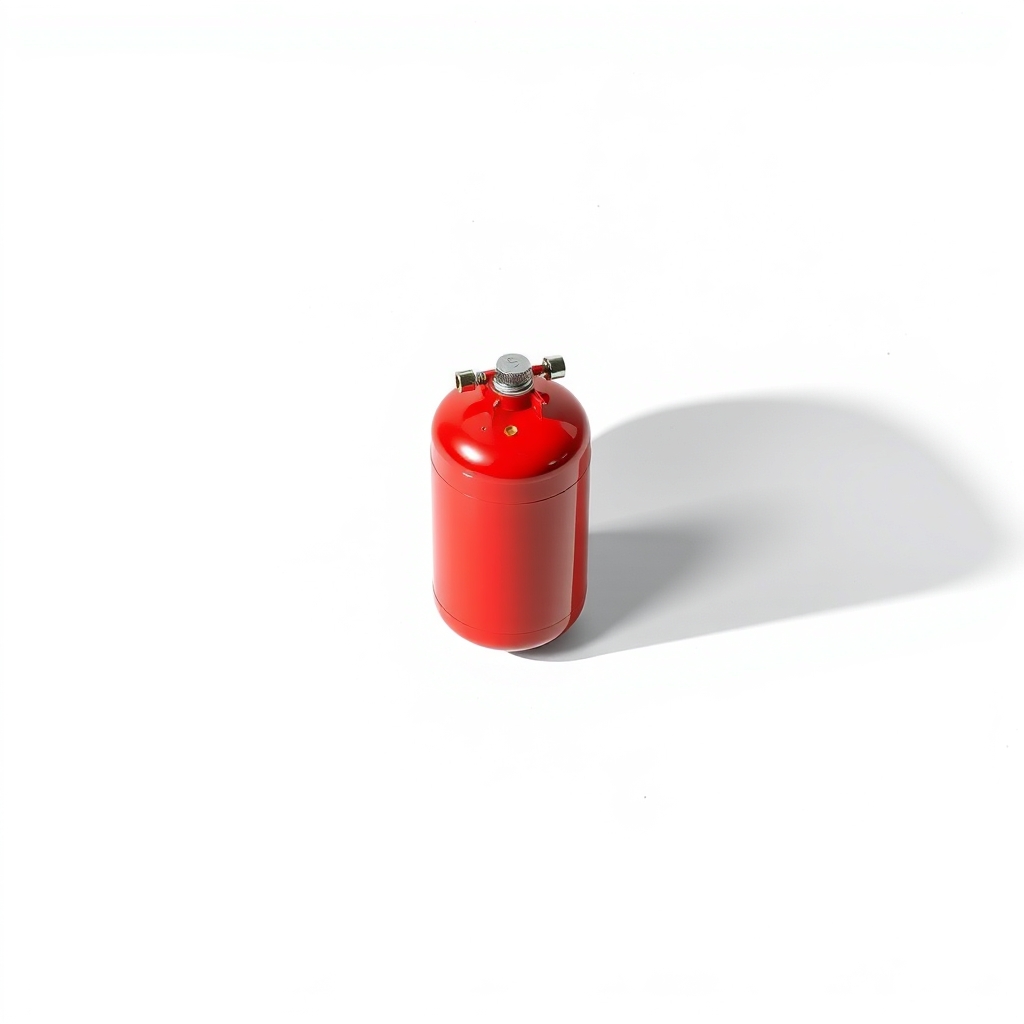
Compressed air
Short bursts only, with the laptop off
- Illustration
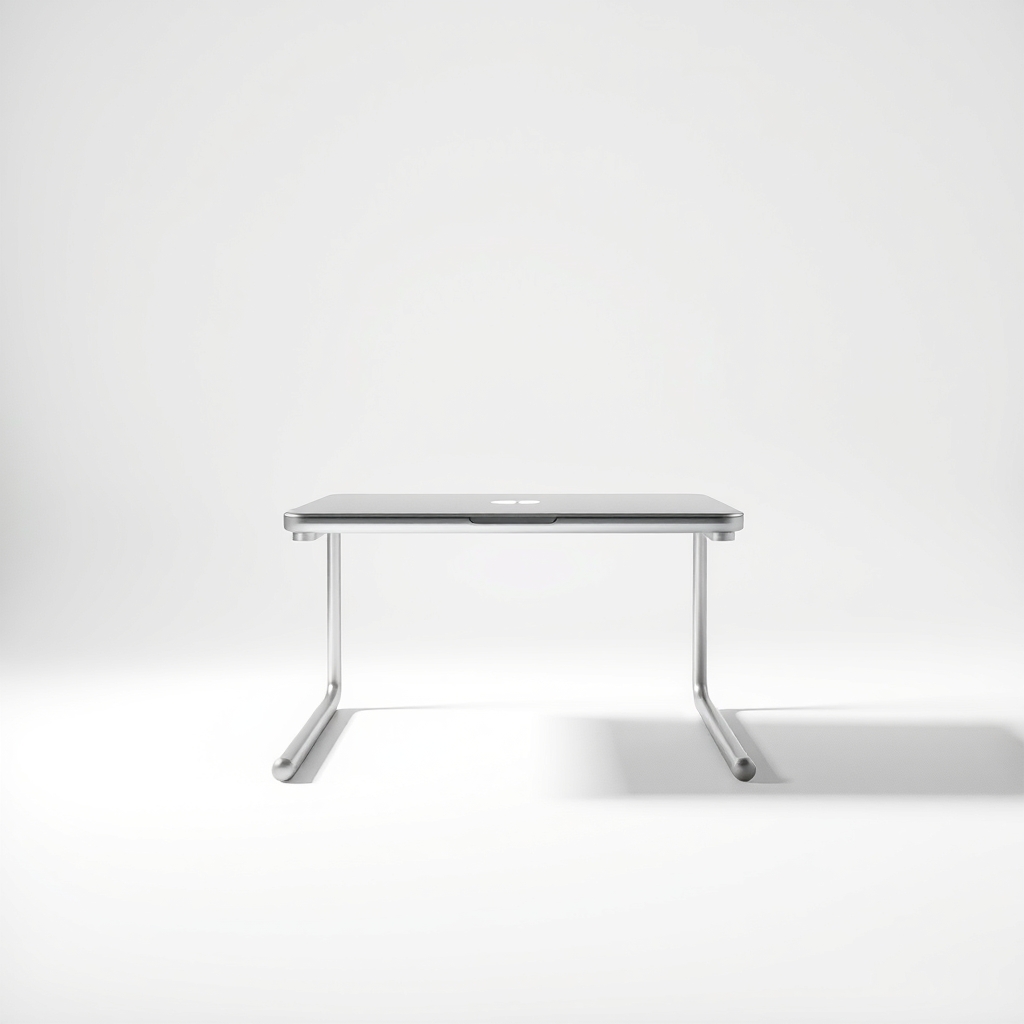
Aluminum laptop stand
Silent, raises the laptop, no fans
- Our pick Illustration
Laptop cooling pad
Pick a size that matches your screen
Why it happens
Blocked vents
Beds, couches, pillows and your lap block the intake on the bottom. The fan runs flat out and still cannot cool the chips.
Dust in the fan and heatsink
Over months, dust packs the fins and slows the fan. Heat has nowhere to go, and the laptop gets louder and hotter.
Heavy work and background tasks
Video calls, games, dozens of browser tabs and background updates keep the processor near full speed, and it makes heat.
Heat, age and a worn fan
A hot room or direct sun adds heat. After several years, the thermal paste can dry out and a fan can wear, and both need a repair shop.
Try this first (free)
Do these in order, starting with the simplest.
-
Move it onto a hard, flat surface
Tool used: Hard, flat surfaceUse a desk or table. If you work on a couch, put a board or tray under it. Raise the back a little so air can reach the intake.
-
See what is working the processor
Open Task Manager (Ctrl+Shift+Esc) on Windows, or Activity Monitor on a Mac. Sort by CPU, then close the heaviest apps, spare browser tabs and background syncing.
-
Update and restart
Install system and driver updates, then restart. Some overheating bugs are fixed in updates.
-
Switch to a cooler power mode
On Windows, choose Balanced or a battery-saver mode for light work. It stops the processor boosting to full speed when it does not need to.
-
Blow the dust out of the vents
Tool used: Compressed airShut down and unplug. Hold the fan still with a toothpick and give the vents short bursts of compressed air from a few inches away. Do not open the case if it is under warranty.
IllustrationCheck price on AmazonTool for this step
Compressed air · Short bursts only, with the laptop off
-
Add a cooling pad
Tool used: Laptop cooling padPlace the laptop on a pad with its fans lined up under the laptop's intake. Plug it into USB and set the fan speed to the lowest level that keeps it cool.
IllustrationCheck price on AmazonTool for this step
Laptop cooling pad · Pick a size that matches your screen
When free fixes aren't enough
If the vents are clean and the load is light but the laptop is still hot, the fan may be failing, with a grinding noise or little air from the vents. Dried thermal paste on an older machine needs a repair shop. If you game, edit video or run heavy software, the laptop will run hot no matter what you clear out. A pad gives you several degrees of headroom for that work. It does not replace a repair if something inside is worn.
Buy the fix
Still stuck after the free fixes? These are the products we would look at.
| Pick | Product | Fixes | Who it's for | Buy |
|---|---|---|---|---|
| Best pick | Laptop cooling pad with fans | a laptop that runs hot because heat cannot escape from the underside | People who work for hours, play games or run heavy software on a laptop with bottom vents. | Check price |
| Budget pick | Aluminum laptop stand | heat from poor airflow under a laptop that lies flat on a desk | Someone with light use who wants a silent, no-moving-parts way to improve airflow. | Check price |
Laptop cooling pad with fans
Fixes: a laptop that runs hot because heat cannot escape from the underside
Look for: A size that fits your screen, listed in inches; Large, quiet fans with adjustable speed; A sturdy base with a height adjustment and a USB plug.
- Who it's for
- People who work for hours, play games or run heavy software on a laptop with bottom vents.
- Honest downside
- Your laptop has its vents on the side or back only, or the fan is clogged with dust. Clean the vents first.
Aluminum laptop stand
Fixes: heat from poor airflow under a laptop that lies flat on a desk
Look for: Sturdy metal with an open design under the laptop; Non-slip pads that grip the laptop and desk; Fits the thickness of your laptop.
- Who it's for
- Someone with light use who wants a silent, no-moving-parts way to improve airflow.
- Honest downside
- You run heavy work and the laptop still overheats. You need a pad with fans.
As an Amazon Associate I earn from qualifying purchases. We don't show prices because they change, so use the button to see today's price.
How we picked: How we picked: this page is based on laptop maker support guides on overheating and airflow, cooling pad and stand listings, and the problems and fixes owners report in reviews. We do not test products by hand.
Laptop too hot to touch? Stop and check these
If the base is too hot to hold your hand against, stop and shut it down. Check for a bulging base or lifted trackpad. That is a swollen battery, so unplug it, do not charge it and take it to a repair shop. A burning smell is a reason to stop using it. If it is only hot under load, let it cool, clear the vents and lighten the work.
Laptop keeps shutting off or shutting down on its own?
Laptops shut down by themselves when the processor reaches a safe temperature limit. If yours dies under load, heat is the first suspect. If it shuts off while cool, it could be a failing battery, a worn charger or a software fault. Try a different charger, update the system and see if it happens on a cool desk.
What to skip
Cooling hacks that add moisture
A bag of ice under the laptop can cause condensation inside. Do not put the laptop in a fridge or freezer. Small stick-on heat sinks do almost nothing to a laptop's cooling.
Frequently asked questions
Why does my laptop overheat so fast and keep overheating?
How do I stop my laptop from overheating for good?
Why is my laptop so hot when I am only browsing?
Is it safe to use a laptop on my lap or in bed?
Related problems
 Free fix inside
Home Office & Cables · Laptop
Why Is My Laptop Fan So Loud? Dust Is the Usual Reason
Read the fix Free fix inside
Home Office & Cables · Laptop
Why Is My Laptop So Slow? The SSD Upgrade Most People Skip
Read the fix Free fix inside
Home Office & Cables · Laptop
Why Does My Laptop Die So Fast? A Power Bank Buys You Hours
Read the fix Free fix inside
Home Office & Cables · Laptop
Laptop Not Charging When Plugged In? Test the Charger First
Read the fixAs an Amazon Associate I earn from qualifying purchases. Affiliate disclosure