Why Does My Keyboard Keep Disconnecting? Move the Receiver Closer
A wireless keyboard drops out when its signal is blocked or its power is low. Move the receiver into view and fix the power settings.
By Jamilur Rahman Updated November 5, 2026 · 6 min read
- Time
- 10 min
- Cost
- Under $20
- Difficulty
- Easy
In this guide
Quick answer
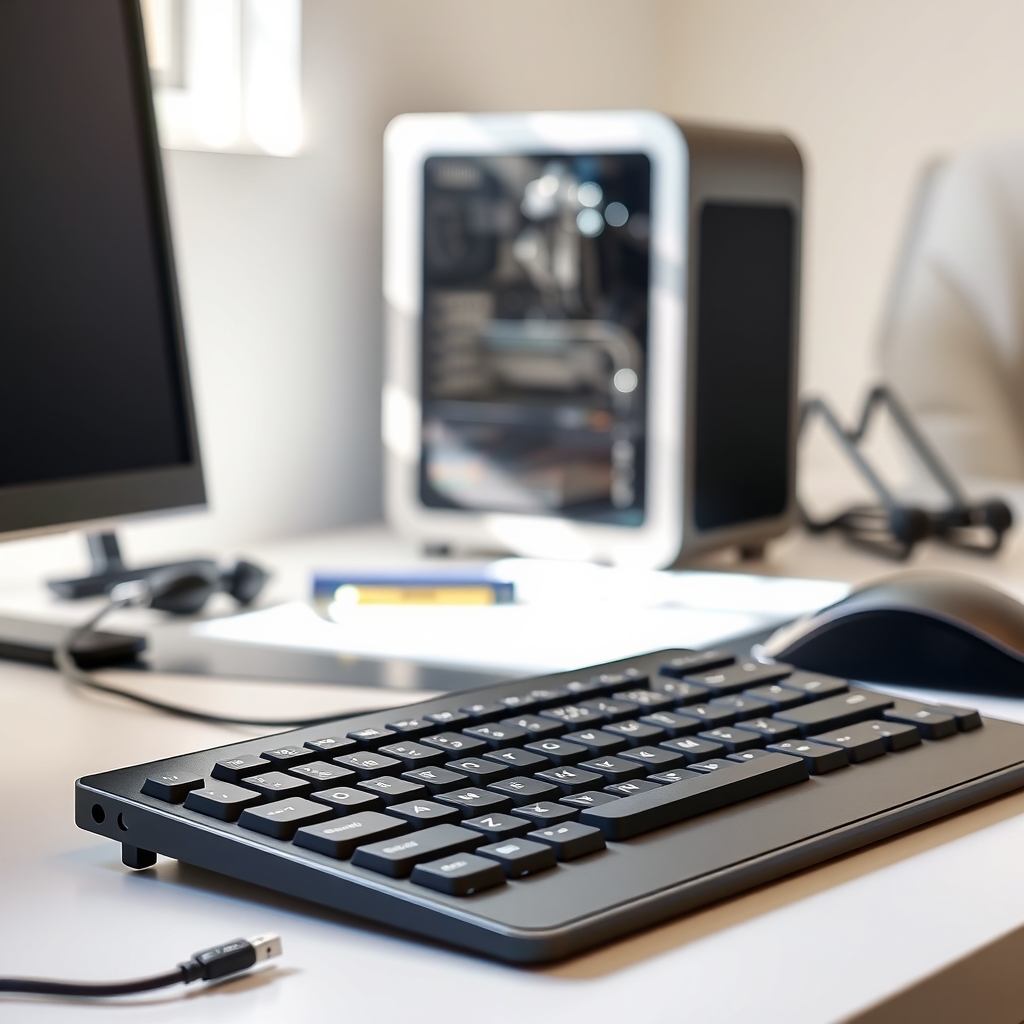
Why does your keyboard keep disconnecting? On a wireless keyboard it is usually a weak signal: the USB receiver sits behind a metal case or next to a USB 3.0 device, or the batteries are low. Put in fresh batteries, move the receiver near the keyboard on a short USB extension cable, and turn off the USB power-saving option. A wired keyboard that drops out needs a different port or cable.
Free fix vs. permanent fix
Fresh power, a better port, no power saving
- Replace the batteries or fully charge the keyboard
- Plug the receiver into a front or side port
- Keep metal, external drives and Wi-Fi gear away from it
- Switch off USB and Bluetooth power saving in Windows
How long it lasts: Fixes it for many people. If the receiver stays stuck behind the PC, the signal drops again.
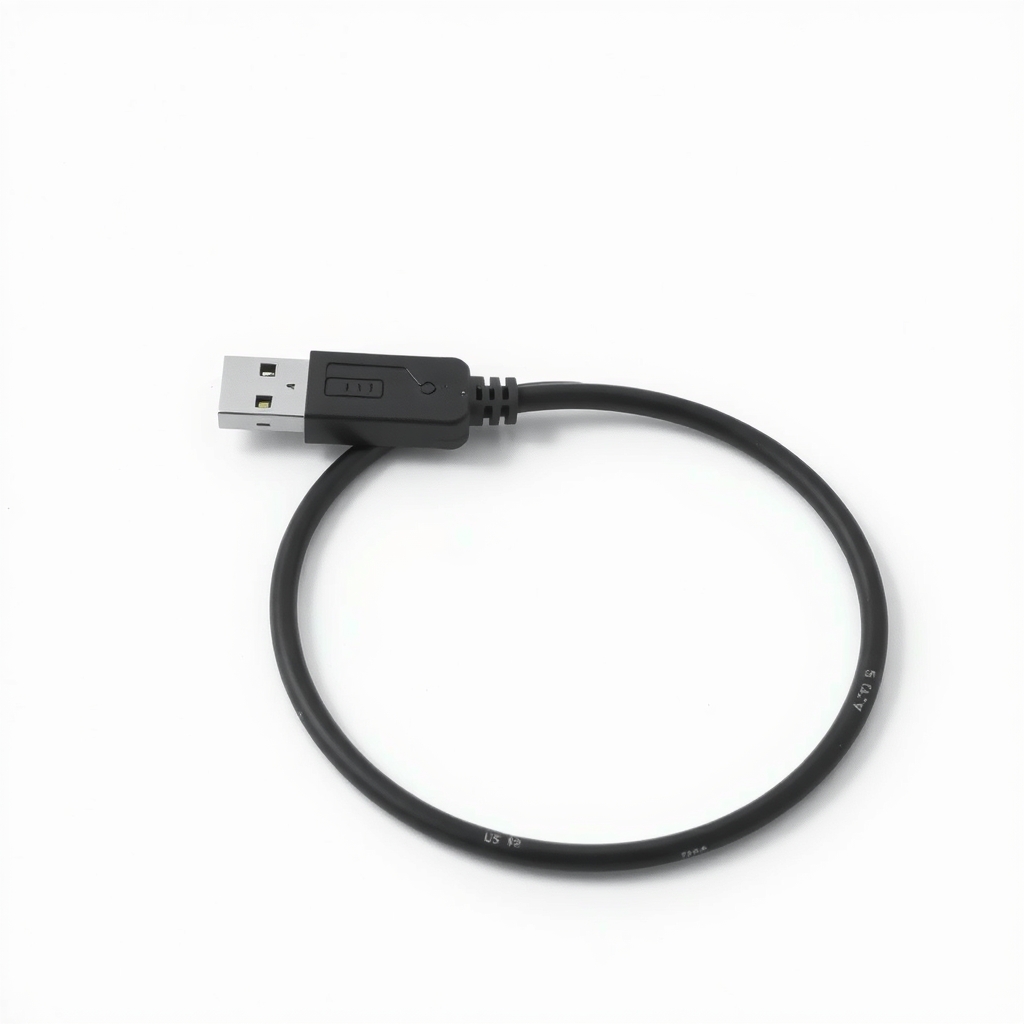
A USB extension cable for the receiver
Most receivers are plugged into the back of a desktop, behind a metal case and next to noisy ports. An extension cable lets you put the receiver on the desk, in line of sight of the keyboard. That one move cures most dropouts and lag.
What to get: USB 2.0 extension cable, 3 to 6 feet
How long it lasts: Permanent. The receiver sits a foot or two from the keyboard in clear view, so the signal stays strong.
As an Amazon Associate I earn from qualifying purchases.
What you'll need
-
Fresh batteries or a charged keyboard
Weak power is the first thing to rule out
You have it -
Front or side USB port
Often less crowded and less shielded than a rear port
Free - Our pick Illustration
USB extension cable
Moves the receiver onto the desk
- Illustration
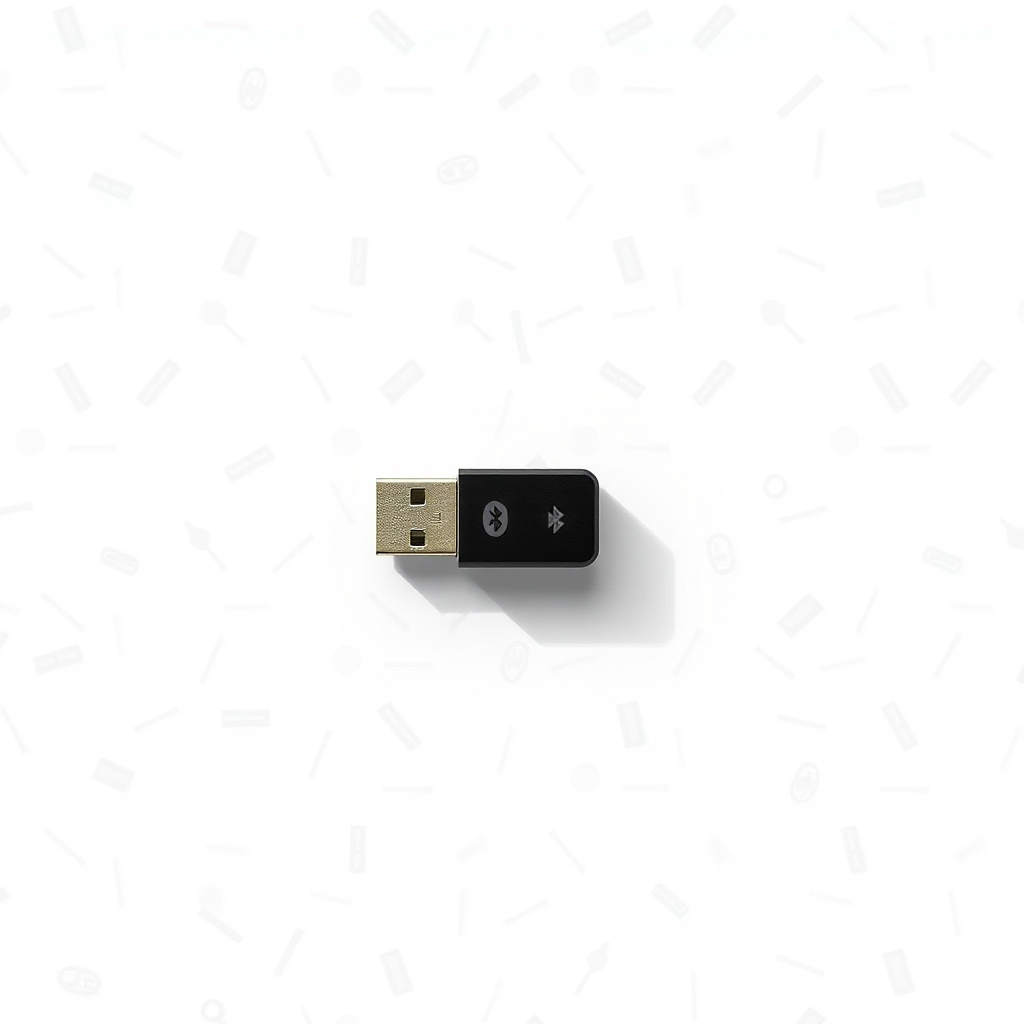
USB Bluetooth adapter
Only for Bluetooth keyboards with a weak built-in radio
Why it happens
Low batteries
Weak batteries make a wireless keyboard lag and drop its connection well before it dies. Rechargeable keyboards behave the same way at a low charge.
A receiver hidden behind metal or too far away
A receiver in the back of a PC is shielded by the case and the desk. Metal desks, walls and distance weaken the signal.
Interference from USB 3.0 and Wi-Fi
USB 3.0 ports, external drives, routers and other 2.4 GHz gear can swamp the keyboard's radio. A hub or drive plugged in right next to the receiver is a common culprit.
Power-saving settings
Windows can switch off USB ports or Bluetooth radios to save power. The keyboard then lags awake or drops out.
A bad port or cable on a wired keyboard
A loose USB port or a frayed cable cuts the connection when you bump the desk. Try another port first.
Try this first (free)
Do these in order, starting with the simplest.
-
Replace or recharge the power
Tool used: Fresh batteries or a charged keyboardPut in fresh batteries, or charge the keyboard fully. Switch its power button off and on again.
-
Move the receiver to a front or side port
Tool used: Front or side USB portUnplug it and use a USB port on the front or side of the PC. If you can, keep it away from external drives and other USB 3.0 devices.
-
Bring the receiver into view
Tool used: USB extension cablePlug the extension cable into the PC and the receiver into its other end. Place the receiver on the desk, a foot or two from the keyboard, with nothing metal between them.
IllustrationCheck price on AmazonTool for this step
USB extension cable · Moves the receiver onto the desk
-
Turn off power saving
In Windows, open Device Manager, expand Universal Serial Bus controllers, open each USB Root Hub, and untick Allow the computer to turn off this device under Power Management. For Bluetooth, do the same on the Bluetooth radio's entry.
-
Pair it again
Remove the keyboard from the Bluetooth list, or re-run the receiver's pairing tool, then pair it again. Update the keyboard's software from the maker's site.
When free fixes aren't enough
If it still drops after fresh power and a clear line to the receiver, test the keyboard on another computer. If it drops there too, the keyboard is failing, so replace it. If a Bluetooth keyboard still lags near your PC, the PC's built-in Bluetooth may be weak, and a small USB Bluetooth adapter is an inexpensive fix. Stop using a rechargeable keyboard that swells, gets hot or smells, and unplug it.
Buy the fix
Still stuck after the free fixes? These are the products we would look at.
| Pick | Product | Fixes | Who it's for | Buy |
|---|---|---|---|---|
| Best pick | USB 2.0 extension cable, 3 to 6 feet | a receiver stuck behind the PC with a weak signal | Anyone with a wireless keyboard or mouse whose receiver is in a rear port. | Check price |
| Upgrade pick | USB Bluetooth adapter | a weak built-in Bluetooth radio that makes a keyboard lag or drop | People whose Bluetooth keyboard lags or drops while sitting right next to the PC. | Check price |
USB 2.0 extension cable, 3 to 6 feet
Fixes: a receiver stuck behind the PC with a weak signal
Look for: Male and female ends that fit your receiver; 3 to 6 feet is long enough for most desks; A snug connector with a shielded cable; USB 2.0 is plenty for a receiver.
- Who it's for
- Anyone with a wireless keyboard or mouse whose receiver is in a rear port.
- Honest downside
- Your keyboard is Bluetooth with no receiver, or it is wired. Check which type you have.
USB Bluetooth adapter
Fixes: a weak built-in Bluetooth radio that makes a keyboard lag or drop
Look for: Bluetooth 5.0 or newer; Works with your operating system; A short cable or dock so you can place it near the keyboard.
- Who it's for
- People whose Bluetooth keyboard lags or drops while sitting right next to the PC.
- Honest downside
- Your keyboard uses its own USB receiver. A Bluetooth adapter will not help it.
As an Amazon Associate I earn from qualifying purchases. We don't show prices because they change, so use the button to see today's price.
How we picked: How we picked: this page is based on wireless keyboard manuals and support guides, operating system power settings, and the problems and fixes people report in reviews. We do not test products by hand.
Keyboard keeps disconnecting and reconnecting, or connecting and disconnecting? Read the pattern
- Drops when you bump the desk: a loose port or cable, or a receiver at the edge of its range.
- Drops after a few minutes idle: a power-saving or sleep setting.
- Drops with lag first: low batteries or interference.
- Drops near a router or phone charger: interference. Move the receiver away from it.
What to skip
Buying a new keyboard first
Fresh batteries and a closer receiver cost little, and a new wireless keyboard plugged into the same hidden rear port will often drop out too. Fix the signal path before you replace the keyboard.
Frequently asked questions
Why does my keyboard keep disconnecting and reconnecting?
Why does my keyboard have a delay, and why is my keyboard lagging?
Why does my keyboard keep turning off?
How do I stop a wired keyboard from disconnecting?
Related problems
 Free fix inside
Home Office & Cables · Keyboard
Laptop Keyboard Not Working? An External Keyboard Keeps You Typing
Read the fix Free fix inside
Home Office & Cables · Keyboard
Keyboard Keeps Double Typing? Clean Under the Keys First
Read the fix Free fix inside
Home Office & Cables · Printer
Printer Not Connecting to Computer? A Fresh USB Cable Often Fixes It
Read the fix Free fix inside
Home Office & Cables · Keyboard
Keyboard Smells Bad? Deep-Clean It Without Taking It Apart
Read the fixAs an Amazon Associate I earn from qualifying purchases. Affiliate disclosure