Printer Not Connecting to Computer? A Fresh USB Cable Often Fixes It
A Wi-Fi hiccup, a stuck print queue or a worn cable can all cut the link. Reset the connection first, then use a short USB cable for a link that stays up.
By Jamilur Rahman Updated November 5, 2026 · 6 min read
- Time
- 20 min
- Cost
- Under $20
- Difficulty
- Easy
In this guide
Quick answer
When a printer is not connecting to your computer, the usual causes are a dropped Wi-Fi link, a printer marked Offline, or a worn or wrong cable. Restart the printer, the computer and the router, then remove and re-add the printer. If it still drops, a short USB A-to-B cable gives you a wired link that does not depend on Wi-Fi, and the printer usually shows up the moment you plug it in.
Free fix vs. permanent fix
Restart, clear Offline, re-add the printer
- Restart the printer, the computer and the router
- Check the printer and computer are on the same Wi-Fi network
- Clear the Use Printer Offline setting and any stuck jobs
- Remove the printer and add it again
How long it lasts: Often for weeks. A Wi-Fi printer can drop again when the router restarts or hands it a new address.
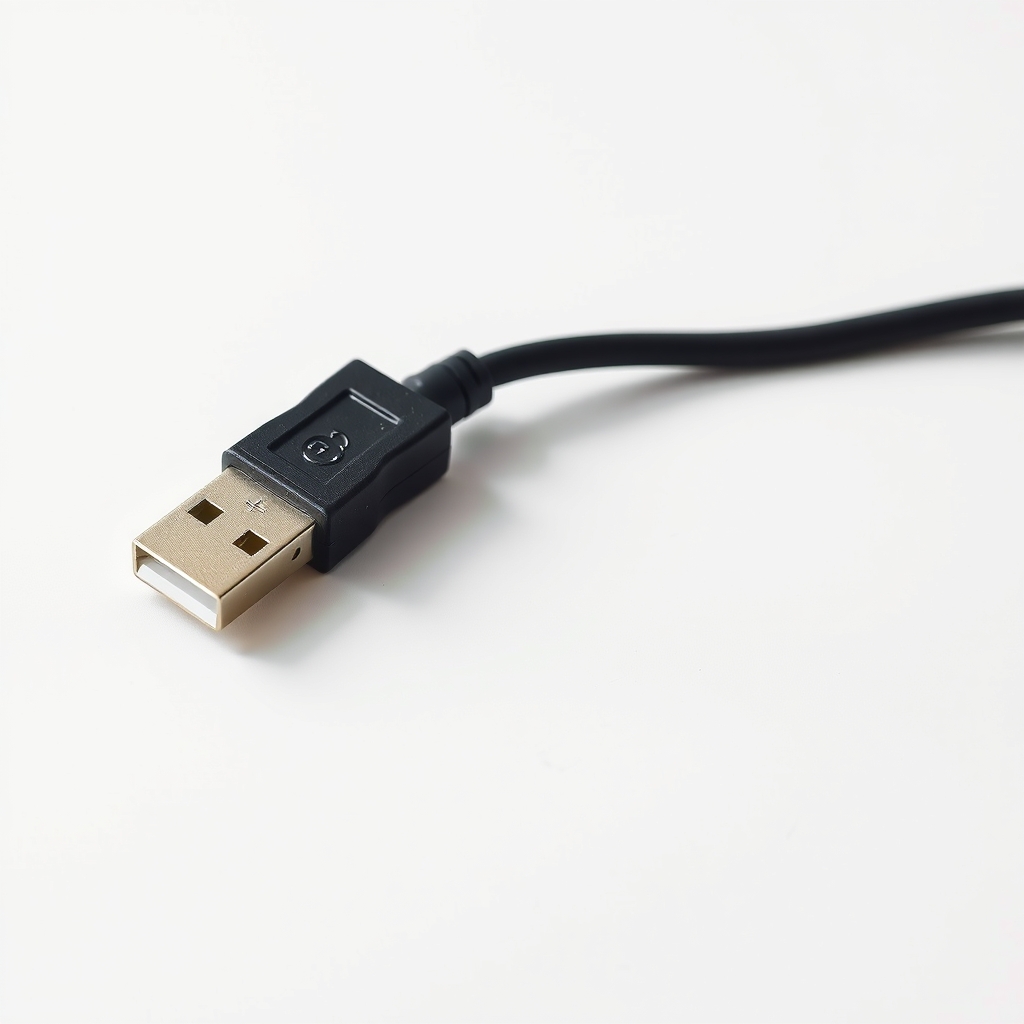
A short USB A-to-B printer cable
A USB cable skips the router, the Wi-Fi signal and the network address that can change on you. Plug it in and the computer finds the printer straight away. The trade-off is that the printer has to sit within a few feet of the computer.
What to get: USB A-to-B printer cable
How long it lasts: Years. A wired link has no Wi-Fi signal to lose.
As an Amazon Associate I earn from qualifying purchases.
What you'll need
-
Printer network report
Print it from the printer's menu to see if it is on Wi-Fi
Free -
A different USB port
Plug straight into the computer, not a hub
Free - Our pick Illustration
USB A-to-B printer cable
Check the shape of your printer's port first
- Illustration
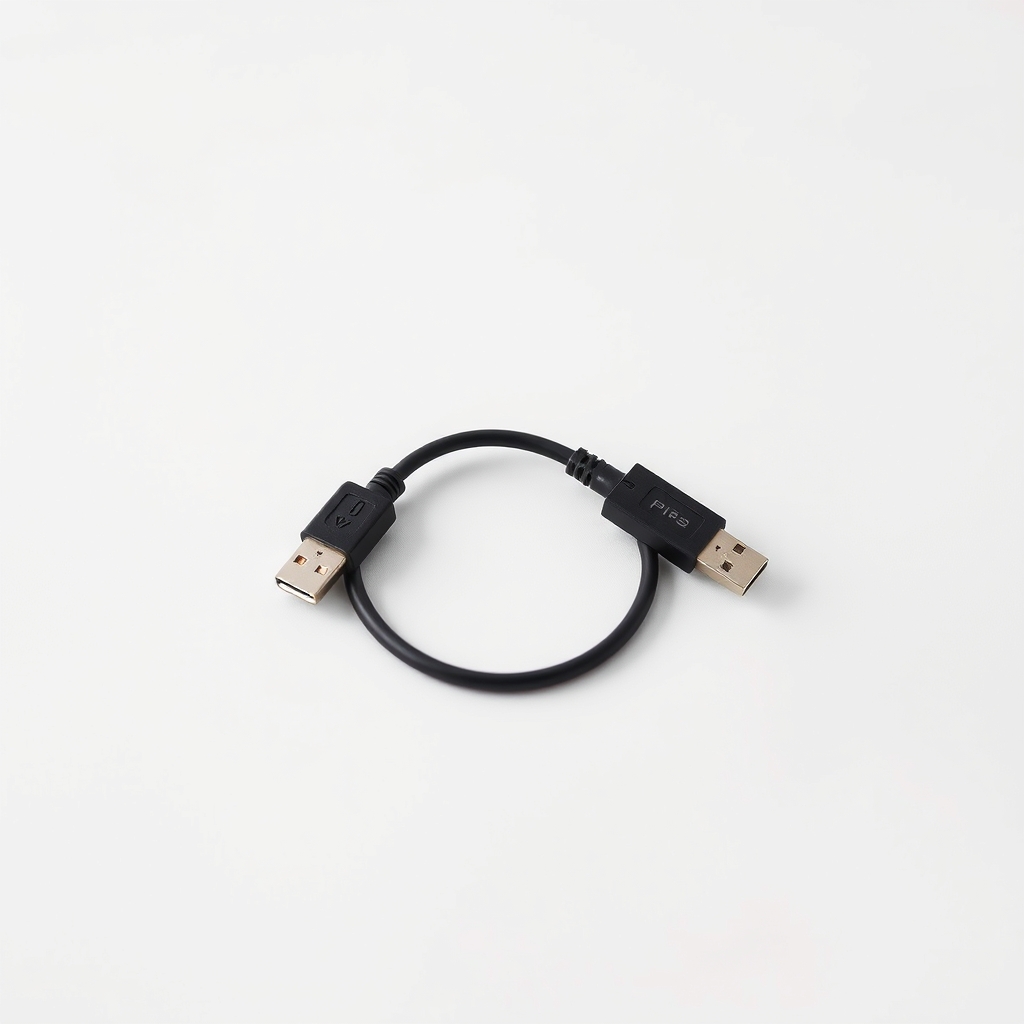
USB-C to USB-B printer cable
For laptops that only have USB-C ports
Why it happens
The printer shows as Offline
Windows or macOS marks a printer Offline after a missed signal, a sleep cycle or a paused queue. The printer is usually fine. The computer has simply stopped trying.
A Wi-Fi link that moved
A new router, a changed password or a router restart can hand the printer a new address, so the computer looks in the wrong place. Many printers only join a 2.4 GHz network, so check which band yours is on.
A stuck print queue or a bad driver
One failed job can block everything behind it. A generic or outdated driver can also stop working after an operating system update.
A worn, loose or wrong cable
Printer cables get bent behind desks and pulled half out. A phone-charging cable may have no data wires at all, so the computer sees nothing. A very long cable can also drop out.
Try this first (free)
Do these in order, starting with the simplest.
-
Restart everything
Turn the printer off and unplug it for 30 seconds. Restart the computer and the router. Plug the printer back in and let it finish warming up before you test.
-
Print a network report
Tool used: Printer network reportFrom the printer's menu, print the network configuration page. It should say connected and name the same Wi-Fi network your computer is on. If it shows nothing, run the printer's Wi-Fi setup again.
-
Clear the Offline setting and the queue
In Windows, open Settings, then Bluetooth & devices, then Printers & scanners. Pick the printer, open its print queue, cancel stuck jobs and untick Use Printer Offline in the Printer menu.
-
Remove the printer and add it again
Delete the printer from your list, then add it fresh. Download the driver from the printer maker's website rather than relying on a generic one.
-
Test with a USB cable
Tool used: USB A-to-B printer cableConnect a USB A-to-B cable from the printer to a port on the computer itself, not a hub. Wait a minute for the computer to set it up. If it does not appear, try another port. Keep the cable under about 15 feet.
IllustrationCheck price on AmazonTool for this step
USB A-to-B printer cable · Check the shape of your printer's port first
When free fixes aren't enough
If the printer reconnects but drops again within a day or two, the wireless link is the weak point. The router may be far away, the 2.4 GHz band may be crowded, or the printer may sleep and lose its address. Reserving a fixed address for the printer in your router settings helps, but a USB cable removes the problem entirely. A cable will not fix a faulty printer. If the printer does not show up over USB on a second computer either, contact the maker.
Buy the fix
Still stuck after the free fixes? These are the products we would look at.
| Pick | Product | Fixes | Who it's for | Buy |
|---|---|---|---|---|
| Best pick | USB A-to-B printer cable | a printer that keeps dropping off Wi-Fi or shows as Offline | Anyone whose printer sits near the computer and who wants it to just work. | Check price |
| Upgrade pick | USB-C to USB-B printer cable | a laptop with no USB-A port | Owners of thin newer laptops that only have USB-C ports. | Check price |
USB A-to-B printer cable
Fixes: a printer that keeps dropping off Wi-Fi or shows as Offline
Look for: A-to-B ends that match the squarish USB-B port on your printer; Six to ten feet long, enough to reach and short enough to stay stable; Shielded cable with snug connectors; Made as a data cable for printers, not a charge-only cable.
- Who it's for
- Anyone whose printer sits near the computer and who wants it to just work.
- Honest downside
- Your printer has a USB-C port or no USB port at all, or sits across the room from the computer. Check the port first.
USB-C to USB-B printer cable
Fixes: a laptop with no USB-A port
Look for: A USB-C end for your laptop and a USB-B end for the printer; Six feet or longer; Shielded, with strong strain relief at both ends.
- Who it's for
- Owners of thin newer laptops that only have USB-C ports.
- Honest downside
- Your computer still has a USB-A port. The A-to-B cable costs less.
As an Amazon Associate I earn from qualifying purchases. We don't show prices because they change, so use the button to see today's price.
How we picked: How we picked: this page is based on printer maker support guides, operating system printing documentation, and what owners report in reviews of printer cables. We do not test products by hand.
Wi-Fi or USB: which one should you use?
- Wi-Fi: best when several people or phones print and the printer is far from the computer.
- USB: best when one computer prints most of the time and the printer sits within reach. It is simpler and does not depend on your router.
- Both: many people keep Wi-Fi for phones and use a USB cable as the dependable fallback.
What to skip
Long bargain cables, unpowered hubs and a new printer
Skip a very long cheap cable and skip plugging the printer into an unpowered hub. Both cause the same dropouts you are trying to fix. And do not buy a new printer until you have tried a cable. Most connection problems are not the printer.
Frequently asked questions
Why is my printer not connecting to my computer?
Why does my printer keep disconnecting from the computer?
How do I know which USB cable my printer needs?
Will plugging in a USB cable stop Wi-Fi printing?
Related problems
 Free fix inside
Home Office & Cables · Printer
Printer Keeps Jamming? Clean the Rollers Before You Replace It
Read the fix Free fix inside
Home Office & Cables · Printer
Printer Printing Blank Pages? A Printhead Cleaning Kit Can Save It
Read the fix Free fix inside
Home Office & Cables · Router
Router Not Connecting to Modem? Swap the Ethernet Cable First
Read the fix Free fix inside
Home Office & Cables · Wifi
Why Is My Wi-Fi So Slow on My PC? A Cheap Adapter Often Fixes It
Read the fixAs an Amazon Associate I earn from qualifying purchases. Affiliate disclosure