Laptop Keyboard Not Working? An External Keyboard Keeps You Typing
Most dead laptop keys are a software glitch, a stuck setting or crumbs. Try the free fixes first, then plug in a USB keyboard so work does not stop.
By Jamilur Rahman Updated November 5, 2026 · 7 min read
- Time
- 20 min
- Cost
- $20-$50
- Difficulty
- Easy

In this guide
Quick answer
A keyboard not working on a laptop is usually a software glitch, a stuck setting or crumbs under the keys, not a dead keyboard. Restart, check Num Lock and the accessibility settings, then clear the debris. If the built-in keys still fail, a plain external USB keyboard gets you typing in a minute, and it also tells you whether the fault is software or hardware.
Free fix vs. permanent fix
Restart, check settings, clean the keys
- Restart the laptop instead of using sleep
- Turn off Num Lock, Fn Lock, Sticky Keys and Filter Keys
- Reinstall the keyboard driver
- Blow out dust and crumbs with short bursts of air
How long it lasts: Often permanent when the cause was a glitch, a setting or crumbs. It does nothing for a worn or damaged keyboard.
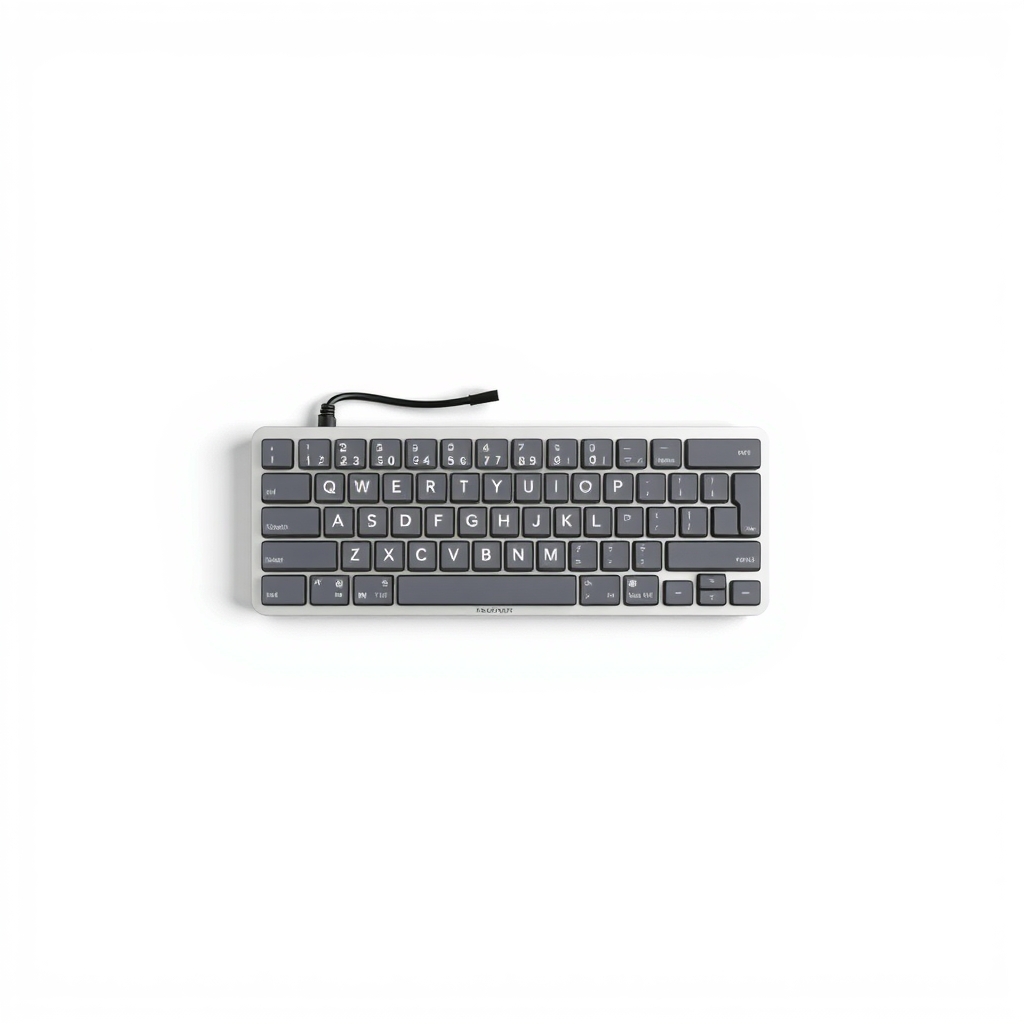
A wired external USB keyboard
An external keyboard does not repair the built-in one, and we will not pretend it does. What it does is put you back to full speed today and show you whether the built-in keys have a hardware fault. If they do, you can wait for a repair, or skip it.
What to get: Wired USB keyboard
How long it lasts: As long as you need it. It works the moment you plug it in and it does not depend on the laptop's own keys.
As an Amazon Associate I earn from qualifying purchases.
What you'll need
-
Soft brush or clean paintbrush
Sweeps loose crumbs from between the keys
You have it - Illustration

Compressed air can
Short bursts only, held upright
- Our pick Illustration
Wired USB keyboard
Plug-and-play, and it works at the startup screens too
- Illustration
Compact Bluetooth keyboard
A tidier desk if you do not mind pairing it
Why it happens
A software or driver glitch
A frozen keyboard driver, or an update that did not finish, can switch the keys off. Keys that die after sleep or an update are often this. A full restart clears most cases.
A setting that changes how keys behave
Sticky Keys and Filter Keys ignore short or repeated presses. Num Lock can make letters on the right side type numbers, and an Fn Lock can make the top row act strange. Many people think the keyboard is dead when a setting is the cause.
Crumbs, dust or a spill under the keys
Debris holds a key half down so it stops registering. A dried sugary drink makes several keys fail together.
A hardware fault
A loose or damaged ribbon cable, a worn keyboard panel or a swollen battery pressing on it will fail every test. That needs a repair or a replacement keyboard.
Try this first (free)
Do these in order, starting with the simplest.
-
Restart the laptop fully
Choose Restart, not Shut down or sleep. On Windows, a restart reloads drivers that Fast Startup can carry over from the last session. Test the keys before you open anything.
-
Check Num Lock, Fn Lock and accessibility settings
Press Num Lock once and try again. Look for an Fn Lock key, often on Esc. In Windows Settings, open Accessibility, then Keyboard, and turn off Sticky Keys and Filter Keys. On a Mac, check Accessibility, then Keyboard, for Slow Keys and Sticky Keys.
-
Reinstall the keyboard driver
On Windows, open Device Manager and expand Keyboards. Right-click the laptop keyboard, often listed as Standard PS/2 Keyboard, and choose Uninstall device. Restart and Windows reinstalls it on its own.
-
Clear dust and crumbs
Tool used: Compressed air canPower the laptop off and unplug it. Tilt it at about 75 degrees and give the keys short bursts of air from a few inches away, holding the can upright. Sweep along the gaps with a soft brush. Do not pry off the keycaps unless you know your model, since the clips snap easily.
IllustrationCheck price on AmazonTool for this step
Compressed air can · Short bursts only, held upright
-
Plug in an external keyboard to find the fault
Tool used: Wired USB keyboardConnect a USB keyboard. If it types fine, your operating system is healthy and the built-in keys are the problem. Then restart and run the startup diagnostics. If the built-in keys also fail there, it is hardware, not Windows.
IllustrationCheck price on AmazonTool for this step
Wired USB keyboard · Plug-and-play, and it works at the startup screens too
When free fixes aren't enough
If the built-in keyboard fails in the startup diagnostics too, or whole rows of keys are dead after a spill, the fault is physical. A replacement laptop keyboard is often a repair-shop job, and some models are glued in. If the laptop base is bulging or the trackpad is rising, stop using it and have the battery checked by a professional. Until the repair happens, an external USB keyboard keeps you working with no drivers and no pairing. If the free fixes brought your keys back, you do not need to buy anything.
Buy the fix
Still stuck after the free fixes? These are the products we would look at.
| Pick | Product | Fixes | Who it's for | Buy |
|---|---|---|---|---|
| Best pick | Wired USB keyboard | not being able to type while the built-in keyboard is down | Anyone whose built-in keys have failed and who needs to keep working today. | Check price |
| Budget pick | Compressed air duster | keys held down by crumbs and dust | Someone with a few sticky or silent keys and no sign of liquid damage. | Check price |
| Upgrade pick | Compact Bluetooth keyboard | a cluttered desk and a long wait for a repair | People who will use the external keyboard for months, or want to share it with a tablet. | Check price |
Wired USB keyboard
Fixes: not being able to type while the built-in keyboard is down
Look for: A USB-A cable, or a USB-C adapter if your laptop has only USB-C ports; Full-size layout with a number pad if you type numbers all day; Quiet keys with normal travel, since you may use it for months.
- Who it's for
- Anyone whose built-in keys have failed and who needs to keep working today.
- Honest downside
- Your laptop has no free port. Look at the Bluetooth option instead.
Compressed air duster
Fixes: keys held down by crumbs and dust
Look for: A thin straw nozzle for the gaps between keys; A can that is labeled safe for electronics.
- Who it's for
- Someone with a few sticky or silent keys and no sign of liquid damage.
- Honest downside
- Anything was spilled on the keyboard. Power off and get it checked, since air only pushes liquid deeper.
Compact Bluetooth keyboard
Fixes: a cluttered desk and a long wait for a repair
Look for: Switch between two or three devices with one key; A rechargeable battery that lasts weeks; A layout you can type on without hunting for keys.
- Who it's for
- People who will use the external keyboard for months, or want to share it with a tablet.
- Honest downside
- The dead keyboard stops you from entering the BIOS or a password at startup. A wired keyboard is more reliable there.
As an Amazon Associate I earn from qualifying purchases. We don't show prices because they change, so use the button to see today's price.
How we picked: How we picked: this page is based on laptop maker support guides, operating system help pages, and what owners report in keyboard reviews. We do not test products by hand.
Keyboard not working on an HP or Dell laptop? Same steps, plus the maker's tool
Everything above works on any brand. HP and Dell also include their own checkup tools. On many HP laptops you can press F2 at startup for the built-in hardware diagnostics, and on many Dell laptops you can press F12 at startup and choose Diagnostics. If your model lists a keyboard test, run it. The HP Support Assistant and Dell SupportAssist apps can also update drivers. If the laptop is still under warranty, ask about a free keyboard repair before you pay anyone.
What to skip
Pouring cleaner or alcohol under the keys
Liquid cleaners can seep into the circuit under the keys and cause the very fault you are trying to fix. Dry cleaning with air and a brush is safer. Also skip paying for a full laptop replacement before you test with an external keyboard, since the fault may turn out to be a setting.
Frequently asked questions
Why is my laptop keyboard not working but the mouse works?
Why does my keyboard not work on my laptop after an update?
How do I fix a laptop keyboard that has stopped working?
How do I fix laptop keys not working, or laptop keyboard keys that stick?
Can I use an external keyboard all the time?
Related problems
 Free fix inside
Home Office & Cables · Keyboard
Keyboard Keeps Double Typing? Clean Under the Keys First
Read the fix Free fix inside
Home Office & Cables · Keyboard
Why Does My Keyboard Keep Disconnecting? Move the Receiver Closer
Read the fix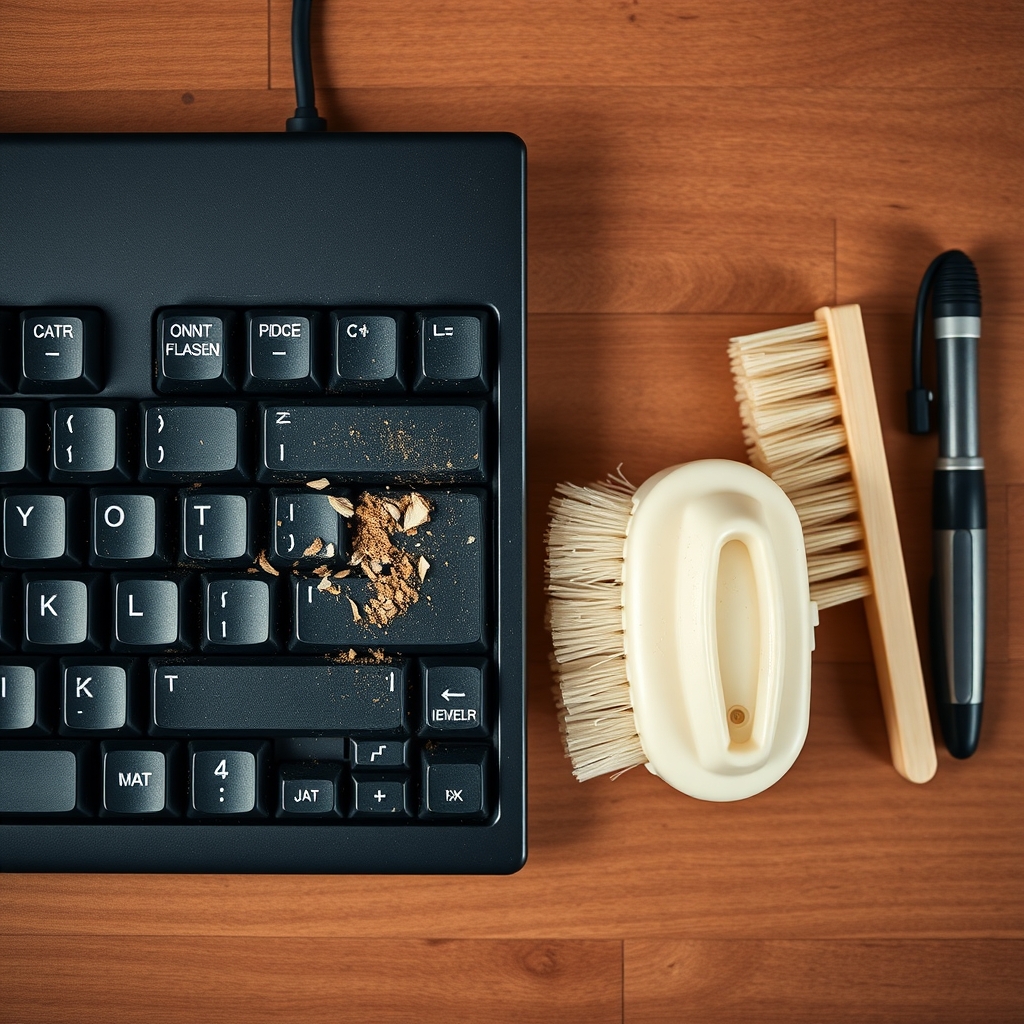 Free fix inside
Home Office & Cables · Keyboard
Keyboard Smells Bad? Deep-Clean It Without Taking It Apart
Read the fix Free fix inside
Home Office & Cables · Laptop
Why Is My Laptop So Slow? The SSD Upgrade Most People Skip
Read the fixAs an Amazon Associate I earn from qualifying purchases. Affiliate disclosure