How to Get Rid of Wi-Fi Dead Zones: Mesh vs. Extender
Walls and distance kill Wi-Fi in some rooms. Move the router first, then learn when a mesh system beats a cheaper extender.
By Jamilur Rahman Updated November 5, 2026 · 7 min read
- Time
- 30 min
- Cost
- $150+
- Difficulty
- Easy
In this guide
Quick answer
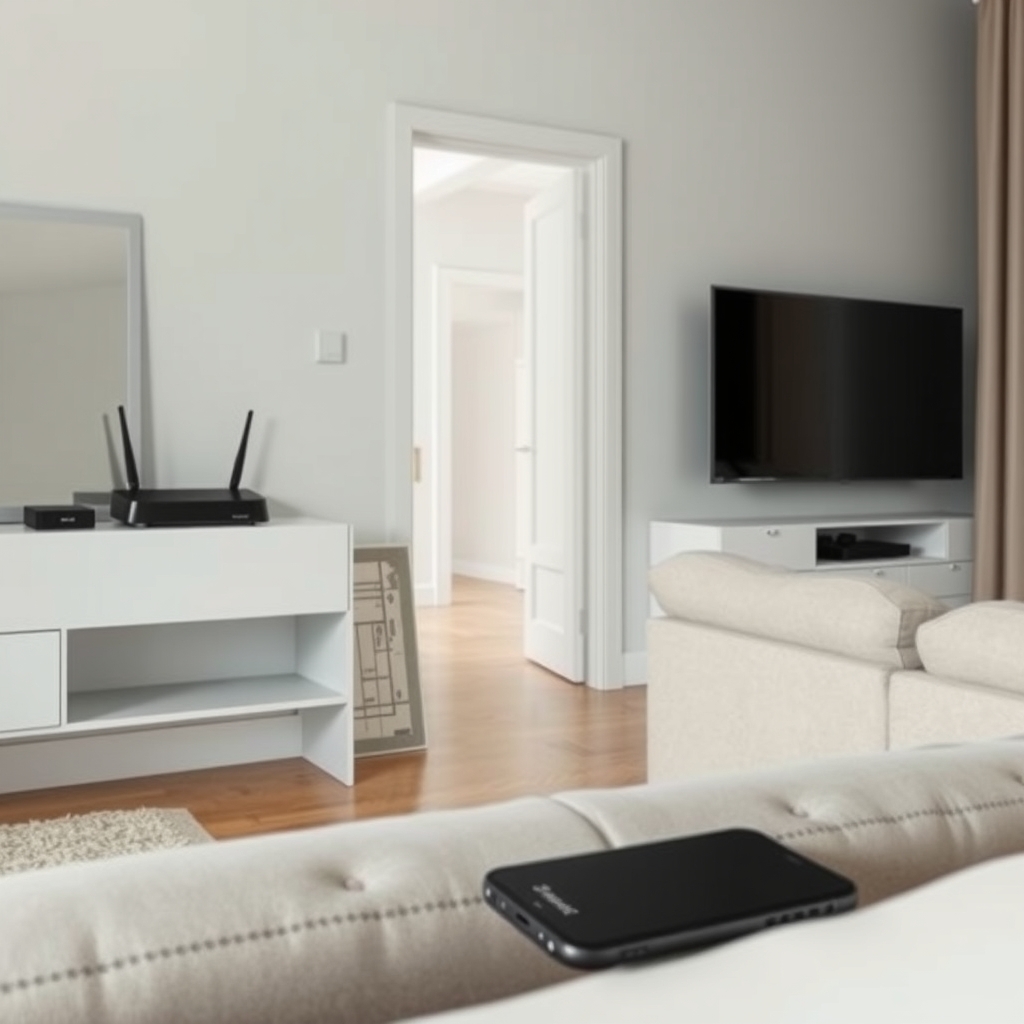
A dead zone is a spot too far from the router, or behind walls, floors or appliances that block the signal. Move the router to a central, open, raised spot and restart it. If a room is still weak, a mesh Wi-Fi system covers the home on one network and keeps speed up, where a plug-in extender usually repeats the signal at a lower speed.
Free fix vs. permanent fix
Move, restart and pick the right band
- Put the router in a central spot, off the floor and out of cabinets
- Keep it away from microwaves, metal and fish tanks
- Restart the router and install firmware updates
- Use 5 GHz near the router and 2.4 GHz far away
How long it lasts: Fixes small gaps. A big home or thick walls still leave a dead room.
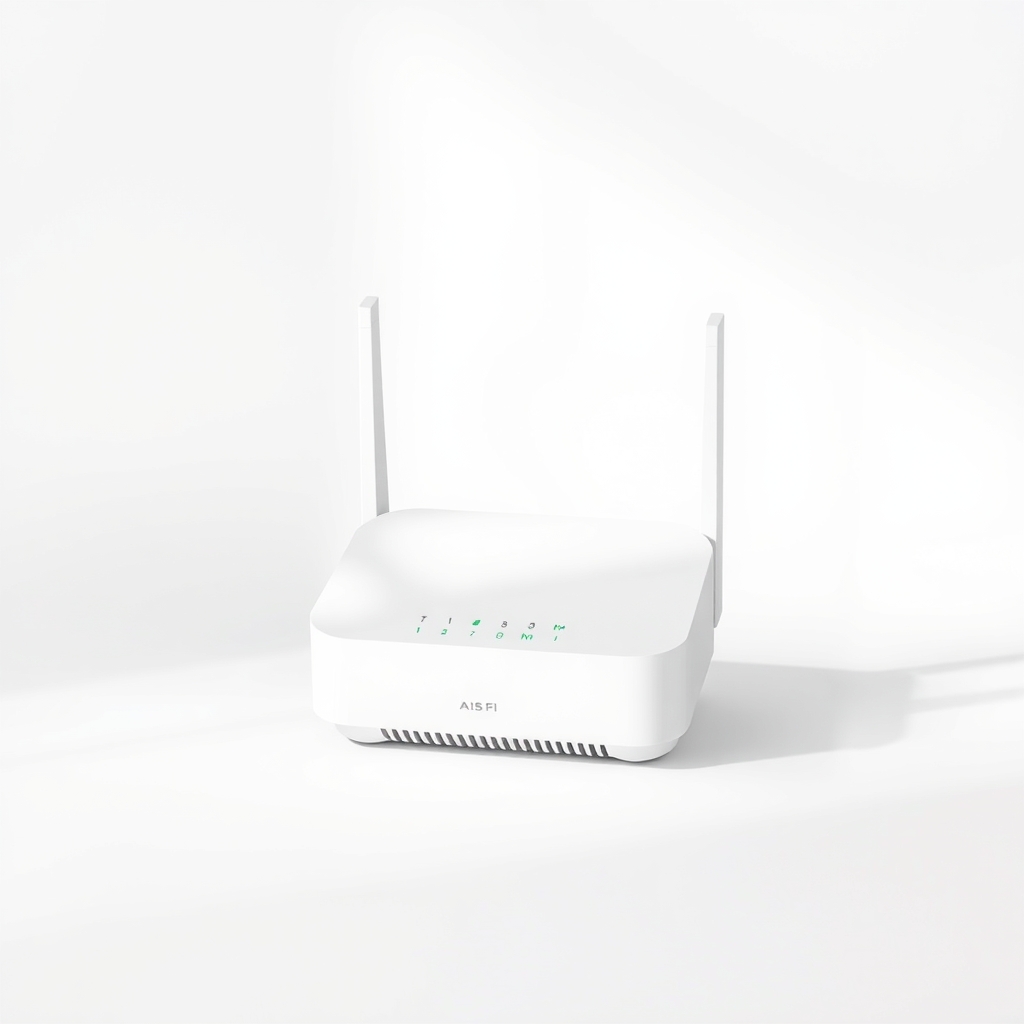
A mesh Wi-Fi system
A single router has to push through every wall. A mesh node placed halfway to the dead zone is a second signal source, and the nodes talk to each other, so speed holds across the home. The system steers your devices to the best node, so a video call does not drop as you walk.
What to get: Mesh Wi-Fi system (a 2-pack suits most homes)
How long it lasts: Years. One network, with nodes spread through the home so every room is near a signal source.
As an Amazon Associate I earn from qualifying purchases.
What you'll need
-
Phone with a speed test app
Test the dead zone before and after each change
You have it -
Ethernet cable
A spare one lets you wire a node to the router for the best speed
You have it - Our pick Illustration
Mesh Wi-Fi system
The lasting fix
- Illustration
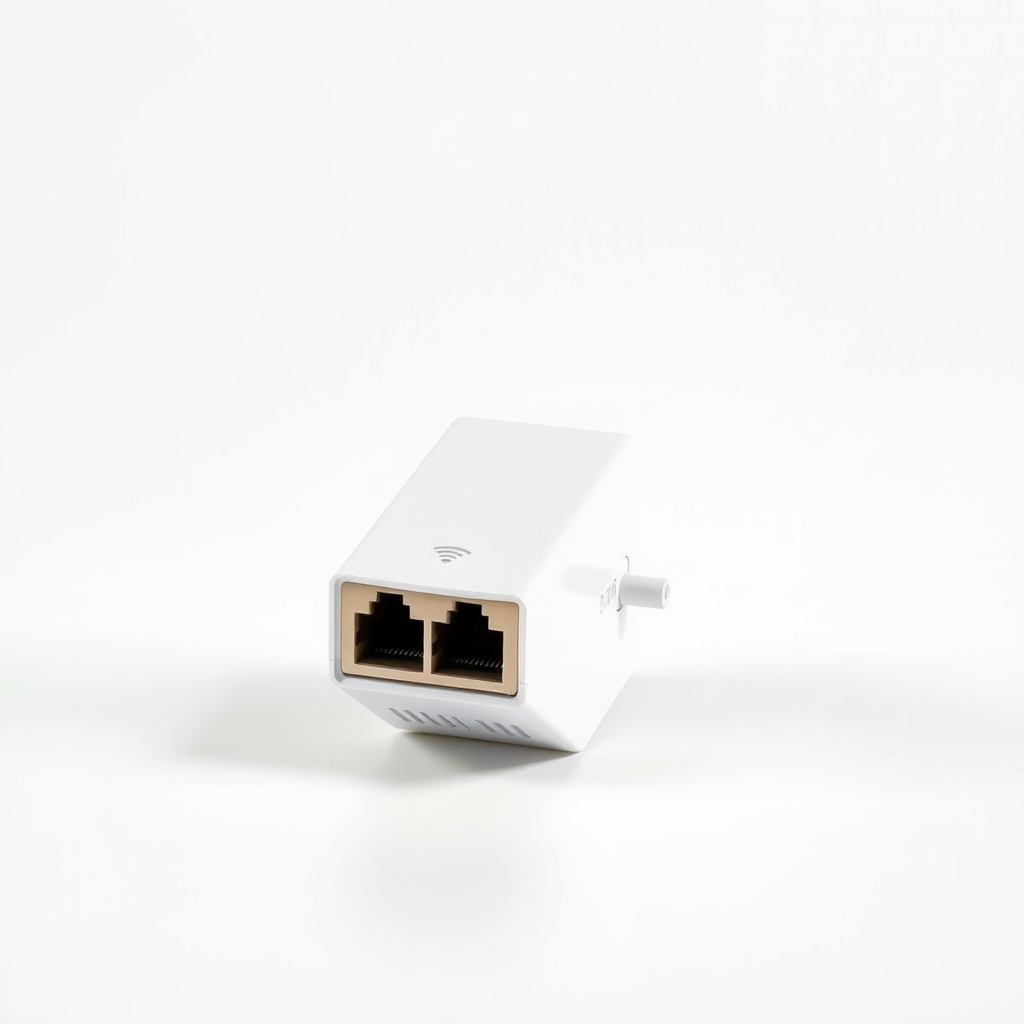
Wi-Fi extender
A cheaper option for one weak spot
- Illustration
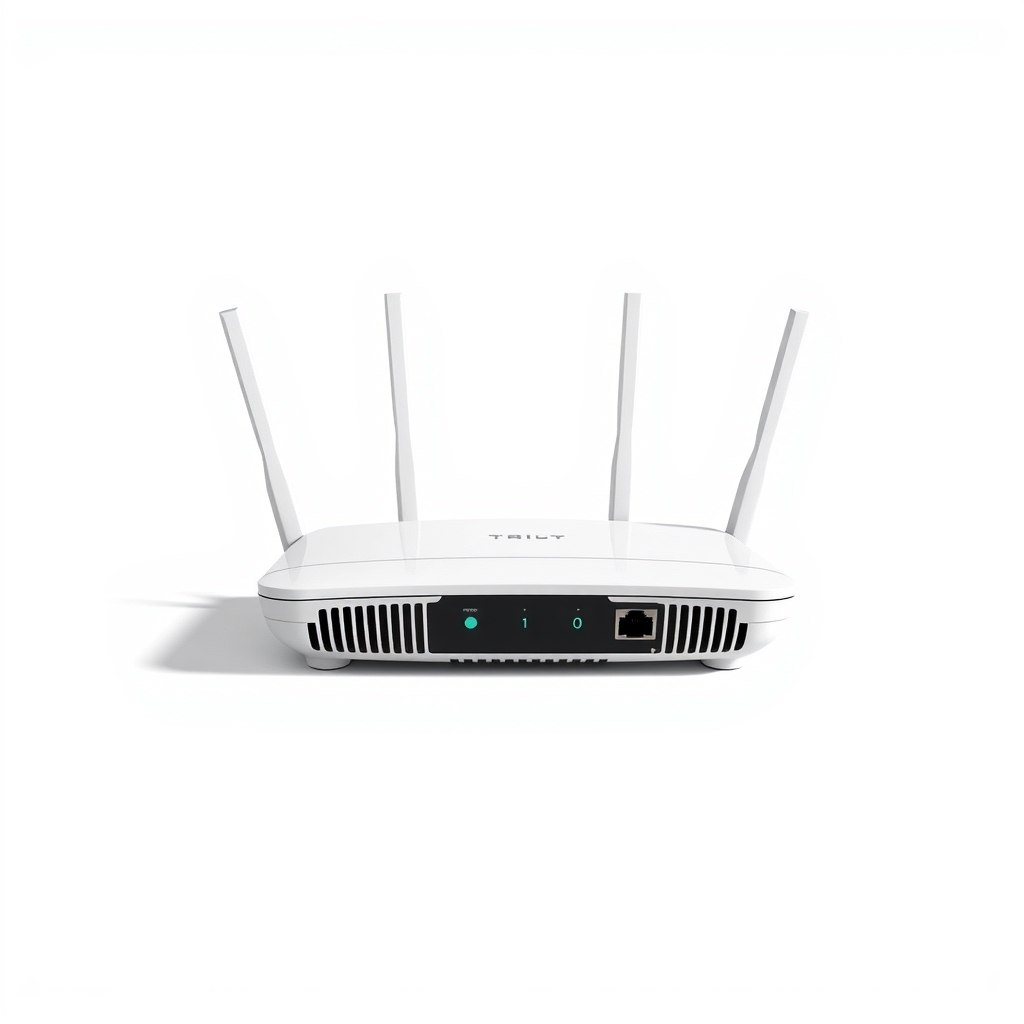
Tri-band mesh system with Ethernet ports
For large or multi-story homes
Why it happens
Distance and walls
Signal drops with every wall and floor. Brick, concrete, plaster over metal lath and metal-backed insulation block it the most.
A router in a bad spot
A router in a basement, behind a TV or inside a cabinet sends its signal where you are not. Central and high works best.
Interference
In apartments, dozens of networks crowd the same channels. Microwaves, cordless phones and baby monitors add noise on the 2.4 GHz band.
An old or underpowered router
A router that is several years old may support only older Wi-Fi standards. An all-in-one modem from your provider can have weak antennas.
The wrong band
5 GHz is faster but fades quickly with distance. 2.4 GHz reaches farther but is slower. A device stuck on a weak band can feel like a dead zone.
Try this first (free)
Do these in order, starting with the simplest.
-
Test the dead zone first
Tool used: Phone with a speed test appStand in the weak room and run a speed test on your phone. Note the speed and signal bars. Repeat it after each change.
-
Move the router
Put it near the center of the home, on a shelf off the floor, in the open. Keep it away from the microwave, metal and a fish tank. Stand any external antennas upright.
-
Restart and update
Unplug the router for 30 seconds, plug it back in and install any firmware update from its app or admin page.
-
Pick the right band
Use 5 GHz in rooms near the router and 2.4 GHz in far rooms. If your router merges both under one name, give each band its own name and put far devices on 2.4 GHz.
-
Change the channel in a crowded building
In an apartment, set the router's channel to auto or to one fewer neighbors use. Neighbors on the same channel slow everyone down.
-
Run a cable if you can
Tool used: Ethernet cableIf a cable can reach the dead-zone room along a baseboard or through a wall jack, a wired node or access point there fixes it for good.
When free fixes aren't enough
If speed in the dead zone is still low after you move the router, the signal cannot cross the walls or distance. An extender is a cheap fix for one weak spot where you browse or stream. It repeats the signal, often cuts the speed about in half when it uses one radio to catch and send, and can add a second network name. A mesh system handles two or more weak rooms, a multi-story home and video calls, on one network. Place a node halfway between the router and the dead zone, where it still gets a good signal. A node in the dead spot only repeats a dead signal.
Buy the fix
Still stuck after the free fixes? These are the products we would look at.
| Pick | Product | Fixes | Who it's for | Buy |
|---|---|---|---|---|
| Best pick | Mesh Wi-Fi system (a 2-pack suits most homes) | a home where one router cannot reach every room | Homes with more than one weak room, two or more floors, or thick walls. | Check price |
| Budget pick | Plug-in Wi-Fi extender with an Ethernet port | one weak spot for casual browsing and streaming | A single weak room where top speed does not matter. | Check price |
| Upgrade pick | Tri-band mesh system with Ethernet ports for wired backhaul | slow speeds in large or multi-floor homes | Large homes, or anyone with fast internet and many devices. | Check price |
Mesh Wi-Fi system (a 2-pack suits most homes)
Fixes: a home where one router cannot reach every room
Look for: Wi-Fi 6 or newer; Coverage that lists your home size, with some margin for walls; A simple app for setup; Ethernet ports on the nodes for wired devices.
- Who it's for
- Homes with more than one weak room, two or more floors, or thick walls.
- Honest downside
- You have one weak corner in a small place, since an extender or a better router position may do. Mesh also cannot speed up a slow internet plan.
Plug-in Wi-Fi extender with an Ethernet port
Fixes: one weak spot for casual browsing and streaming
Look for: Matches your router's Wi-Fi standard; An Ethernet port, for a TV or console; A signal light that shows where to plug it in.
- Who it's for
- A single weak room where top speed does not matter.
- Honest downside
- You want fast video calls or gaming in the dead zone, or you have more than one dead room. Choose mesh.
Tri-band mesh system with Ethernet ports for wired backhaul
Fixes: slow speeds in large or multi-floor homes
Look for: A third band reserved for linking the nodes, or wired backhaul support; Two or three nodes; Ethernet ports on every node.
- Who it's for
- Large homes, or anyone with fast internet and many devices.
- Honest downside
- Your home is small. You would pay for capacity you will not use.
As an Amazon Associate I earn from qualifying purchases. We don't show prices because they change, so use the button to see today's price.
How we picked: How we picked: this page is based on router and mesh system manuals, Wi-Fi placement guides, and what owners report in reviews of mesh systems and extenders. We do not test products by hand.
Mesh vs. extender at a glance
- Network name: mesh uses one. Many extenders add a second.
- Speed: mesh holds speed across nodes. An extender often cuts it.
- Setup: both are easy. Mesh takes a little longer.
- Best for: mesh for whole homes, an extender for one weak room.
Apartment Wi-Fi: what is different
In an apartment, the problem is often neighbors' networks, not walls. Use 5 GHz where you can, set the channel to auto, and place the router in the middle of the unit. A small unit may need only a better router position, not a mesh system.
What to skip
Stick-on signal boosters and 'range' apps
Add-ons that claim to boost the signal without adding hardware do not give you a new signal source, so they do not fix a dead zone. Spend that money on a node or an extender instead.
Frequently asked questions
Is a mesh system better than an extender?
Where should I put a mesh node?
Will mesh make my internet faster?
Why does Wi-Fi work near the router and drop in the next room?
Related problems
As an Amazon Associate I earn from qualifying purchases. Affiliate disclosure